
Introduction
Windows is the world’s most widely used desktop operating system — and that widespread use means a constant stream of errors, performance hiccups, and configuration challenges. Whether your machine throws a Blue Screen of Death out of nowhere, crawls on startup, refuses to update, or silently swallows your disk space, the fix is almost always documented somewhere. The problem is knowing where to look.
This pillar post is your single starting point. It maps out every major category of Windows troubleshooting and performance optimization, explains what causes each class of problem, and links directly to the detailed step-by-step guides on this site that walk you through the fix.
| Applies to: Windows 7, Windows 8/8.1, Windows 10, and Windows 11. Where version-specific steps differ, the linked guides call it out clearly. |
Quick Reference: Find Your Fix Fast
Not sure which section applies to you? Use this table to jump straight to the right guide.
| Issue | Likely Cause | Jump To Section |
| Blue screen / BSOD | Driver, RAM, or system file | Stop Errors & BSOD |
| PC boots slowly | Startup programs, fragmentation | Performance Optimisation |
| Windows Update fails | Cache corruption, disk space | Windows Update Issues |
| Disk space disappearing | WinSxS, hibernation, restore points | Disk Space Management |
| PC freezes or crashes | Overheating, bad drivers | Common Windows Errors |
| Dual boot not working | Bootloader conflict, UEFI/MBR | Dual Boot & Multi-OS |
| Taskbar thumbnails wrong size | Registry setting | Visual & UI Tweaks |
| Hibernation problems | Hiberfil.sys, fast startup | Hibernation in Windows 10 |
1. Stop Errors & BSOD
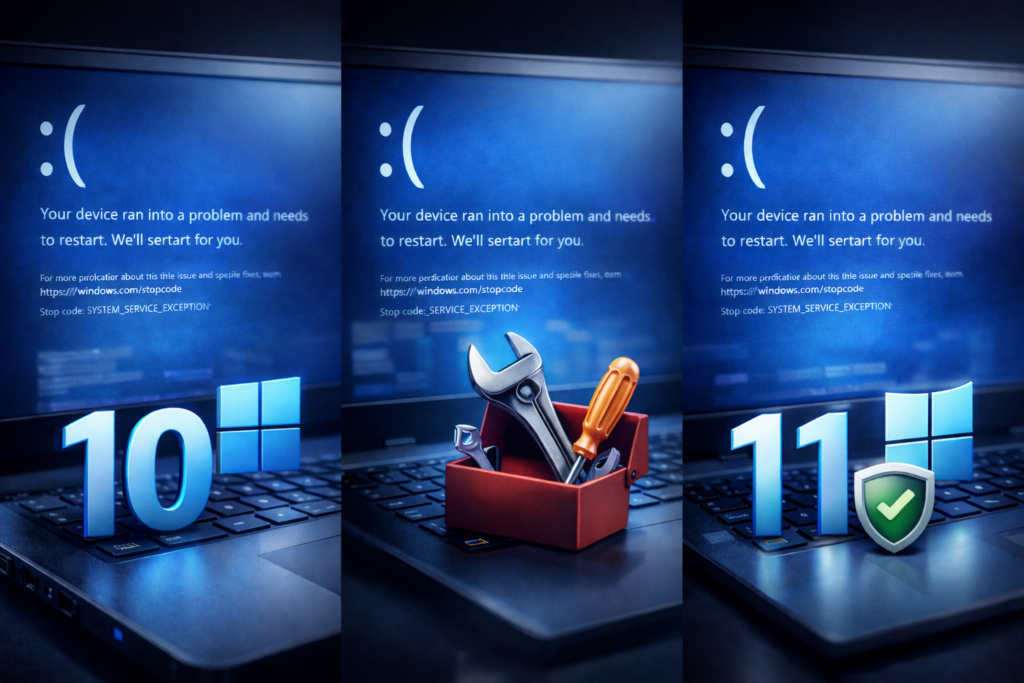
A Blue Screen of Death (BSOD) — technically a Stop Error — is Windows halting the system to prevent damage when it encounters a fatal kernel-level fault. The cryptic error codes and hex addresses are intimidating, but each code points to a specific root cause.
What typically causes a BSOD?
Outdated, corrupted, or incompatible device drivers are the most common trigger. Hardware faults — particularly failing RAM or a dying hard drive — are a close second. Malware, corrupted system files, and botched Windows Updates can also produce Stop Errors.
How to diagnose
Note the STOP code displayed on the blue screen (e.g. DRIVER_IRQL_NOT_LESS_OR_EQUAL or MEMORY_MANAGEMENT). Open Event Viewer > Windows Logs > System and look for Critical errors timestamped at the crash. Run the Windows Memory Diagnostic tool to rule out RAM.
Detailed guides on this site
- → Stop errors — causes and how to fix them
- → Resolving stop errors in Windows 10
- → Fix Windows 10 / 11 BSOD: csagent.sys
| Pro tip: If the BSOD appeared after a Windows Update, boot into Safe Mode and use Device Manager to roll back recently updated drivers before attempting any other fix. |
2. Common Windows Errors & General Fixes
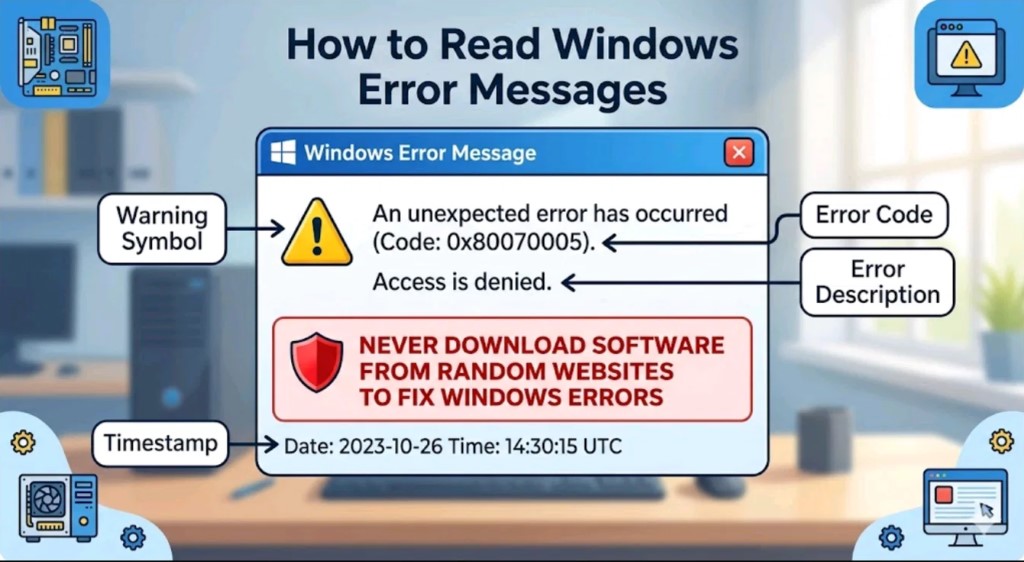
Beyond BSODs, Windows surfaces hundreds of error codes across its subsystems — application crashes, COM errors, registry faults, DLL failures, and more. Many of these have well-documented fixes that take just a few minutes to apply.
The most reliable first steps
Before diving into advanced fixes, run through this sequence: restart the machine (clears transient faults), run System File Checker (sfc /scannow in an elevated command prompt), and run DISM /Online /Cleanup-Image /RestoreHealth to repair the Windows image store. These three commands resolve a surprisingly large proportion of general Windows errors without any further intervention.
Detailed guides on this site
3. Startup & Boot Problems
A Windows machine that won’t start — or starts and immediately crashes — is among the most alarming things a user can face. The good news is that Windows ships with a dedicated recovery environment that can repair most boot-level issues automatically.
Windows Recovery Environment (WinRE)
WinRE is a stripped-down version of Windows that boots independently of the main OS. It provides Startup Repair (automatic), System Restore, Command Prompt access, and the ability to reset or refresh the installation. On modern machines you can access it by holding Shift while clicking Restart, or by booting from a Windows installation USB.
UEFI vs. legacy BIOS
If you’ve moved a drive between machines or cloned a disk, boot failures are often caused by a mismatch between the firmware mode (UEFI vs. legacy BIOS) and the partition table type (GPT vs. MBR). The fix is usually to either convert the disk or change the firmware boot mode — not to reinstall Windows from scratch.

Detailed guides on this site
- → Using Windows Recovery Environment for startup problems
- → How to install and boot Windows 7 on UEFI/GPT computers
4. Performance Optimisation
A slow Windows PC is rarely a hardware problem — it’s almost always a configuration problem. Startup programs, background services, a misconfigured paging file, visual effects, and power plan settings all have a significant impact on day-to-day responsiveness.
The highest-impact changes you can make today
First, open Task Manager (Ctrl + Shift + Esc) and review the Startup tab. Disable every program you don’t need at login — each one adds to your boot time. Second, in Power Options, switch from Balanced to High Performance (or use the custom Balanced plan with the CPU minimum set to 5% rather than 100%). Third, if you’re still on a spinning hard drive, the single most impactful upgrade you can make is replacing it with an SSD.

Detailed guides on this site
| Benchmark before and after: use Windows’ built-in Performance Monitor (perfmon) or a free tool like CrystalDiskMark to measure the actual impact of each change. You may find one setting accounts for 80% of the improvement. |
5. Windows Update Issues
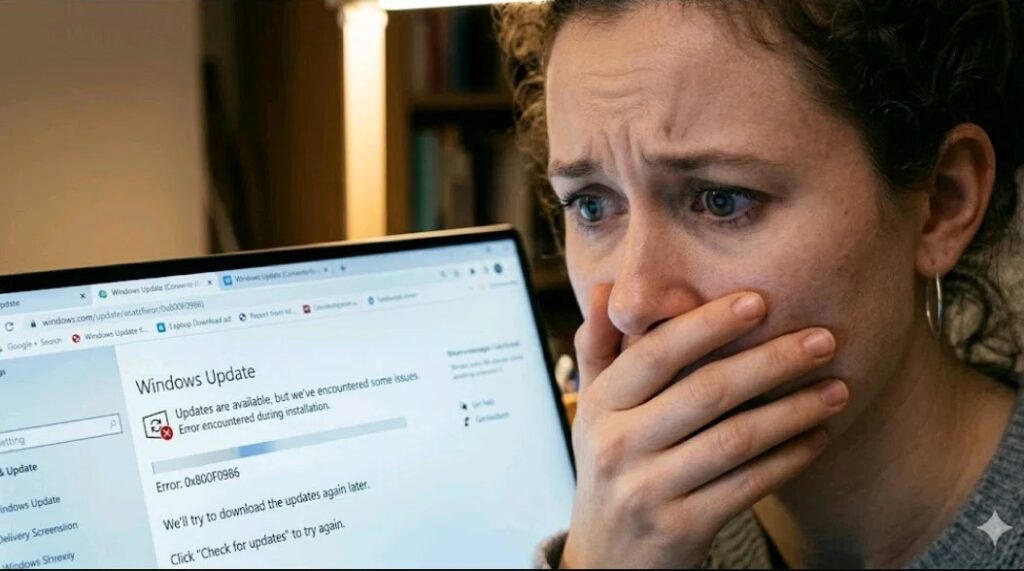
Windows Update is the mechanism Microsoft uses to deliver security patches, feature updates, and driver updates. When it breaks — and it occasionally does — updates can stall, fail with cryptic error codes (0x80070002, 0x8024402C, and dozens more), or silently loop.
The standard fix sequence
Most Windows Update failures are caused by a corrupted update cache. The fix: stop the Windows Update service (net stop wuauserv), delete the contents of C:\Windows\SoftwareDistribution\Download, restart the service, and try again. For persistent failures, the Windows Update Troubleshooter (Settings > Update & Security > Troubleshoot) automates this process.
When updates cause problems rather than fix them
Occasionally a Patch Tuesday update introduces regressions. In this case, go to Settings > Windows Update > View Update History > Uninstall Updates and remove the specific KB number causing the issue. You can then pause updates for up to 35 days while Microsoft releases a corrected version.
Detailed guides on this site
6. Disk Space Management
Hard drives and SSDs fill up faster than most users expect. Windows itself is a significant consumer: the WinSxS component store, hibernation file (hiberfil.sys), page file (pagefile.sys), System Restore shadow copies, and Windows Update downloads can collectively consume 20–40 GB on a typical installation.
Where the space goes
Run Disk Cleanup as Administrator and check the “Clean up system files” option — this surface area is where the largest gains are. The Delivery Optimization cache (used by Windows Update peer-to-peer delivery) can be cleared from Settings > Windows Update > Delivery Optimisation > Activity Monitor > Delete. For a detailed breakdown, download WinDirStat or TreeSize Free to see exactly which folders and file types are consuming the most space.

Windows 8 data deduplication
Windows Server 8 and later introduced a built-in data deduplication feature that can reclaim substantial space on file servers storing many similar files. It works by identifying duplicate byte sequences across files and replacing them with pointers to a shared data store, without affecting how applications or users access those files.
Detailed guides on this site
- → Why you’ve lost disk space in Windows — and how to get it back
- → Windows 8 data deduplication feature explained
7. Windows Features & Settings
Windows ships with dozens of optional features — Hyper-V, Internet Information Services, Windows Subsystem for Linux, Telnet Client, and more — that are installed or removed via the “Turn Windows features on or off” panel. Knowing what’s available and what to disable can both improve security and free up resources.
Processor compatibility check
Before upgrading to Windows 10 or Windows 11, it’s worth checking whether your CPU is on the official supported list. Windows 11 in particular introduced strict requirements around TPM 2.0 and CPU generation that block many otherwise capable machines. There are workarounds, but they come with caveats around future update support.
Visual & UI tweaks
Small visual adjustments — like resizing the taskbar thumbnail previews that appear when you hover over a running app — are controlled via registry keys rather than the Settings app. These are simple edits but can meaningfully improve the usability of the interface on high-DPI screens.
Detailed guides on this site
- → How to turn Windows 10 features on or off
- → How to check if your processor is compatible with Windows 10
- → How to resize Windows taskbar thumbnails
8. Hibernation in Windows 10
Hibernation saves the entire contents of RAM to disk (hiberfil.sys) and powers the machine off completely. On resume, Windows reloads the saved state rather than doing a full boot — giving you roughly the same experience as Sleep but with zero power draw. It’s particularly valuable on laptops.

Hibernate vs. Sleep vs. Fast Startup
Sleep keeps RAM powered (low power draw, instant resume). Hibernation writes RAM to disk and powers off fully (zero draw, slower resume). Fast Startup — enabled by default in Windows 10/11 — is a hybrid: it logs users out but hibernates the kernel, giving faster boot times while still cutting power fully. Understanding these three modes helps you choose the right one for your usage pattern.
When to disable hibernation
The hiberfil.sys file is roughly 75% of your installed RAM. On a machine with 16 GB RAM, that’s 12 GB of disk space reserved at all times. If you never hibernate your PC and your SSD is getting full, disabling hibernation with powercfg /h off is an easy way to reclaim significant space.
Detailed guides on this site
- → What is hibernation in Windows 10 and should you use it?
- → Hibernation: advantages and disadvantages
| Note: Disabling Fast Startup (via Power Options > Choose what the power buttons do) can resolve issues where Windows doesn’t fully apply changes made during shutdown — such as driver updates or Group Policy refreshes. |
9. Dual Boot & Multi-OS Setups
Running two versions of Windows — or Windows alongside macOS or Linux — on the same machine gives you flexibility but introduces bootloader complexity. The most common issues are the bootloader being overwritten, incorrect partition alignment, and the two OSes fighting over the same boot configuration data (BCD) store.
The golden rules of dual booting
Always install the older OS first. Windows 8 or 10 installed after Windows 7 will automatically add an entry to the boot menu for both. Install each OS on a separate partition, ideally on separate physical drives if your machine supports it. Back up your BCD store before making any changes using bcdedit /export backup.bcd.
UEFI and Secure Boot considerations
Modern machines with UEFI firmware and Secure Boot enabled can complicate dual boot setups — particularly when one of the OSes is Linux. Windows stores its bootloader in the EFI System Partition (ESP); adding a second OS requires placing a shim or separate bootloader entry in the same partition without overwriting the Windows entry.
Detailed guides on this site
10. Installing Windows on Unsupported Hardware
Microsoft’s official upgrade path to Windows 11 excludes processors older than 8th-generation Intel Core or Ryzen 2000, and requires a TPM 2.0 chip. For many users with perfectly capable hardware, this is a frustrating barrier. There are documented workarounds.
Bypass TPM and CPU checks during installation
The most widely used method is editing the Windows 11 setup registry key (LabConfig) during installation to skip the hardware checks. This is not officially supported by Microsoft and means you’ll receive a warning that your “PC doesn’t meet the minimum system requirements” — but in practice, Windows 11 installs and runs normally on most capable older hardware.
Download official OS images
Microsoft provides official ISO downloads for Windows 10 and Windows 11 via the Media Creation Tool and the Microsoft Software Download pages. Using official images rather than third-party sources is important for both security and licensing compliance.
Detailed guides on this site
- → Install Windows 10 on unsupported hardware / upgrade to Windows 11 without TPM
- → Download full versions of operating systems (official sources)
Conclusion
Windows troubleshooting looks daunting but follows consistent patterns. The vast majority of issues — BSODs, slow startups, failed updates, disappearing disk space — have well-defined causes and step-by-step fixes. This guide has mapped out the ten most important problem categories and pointed you to the detailed walk through for each.
Bookmark this page as your starting point. When something goes wrong, come here first, identify the category, and follow the link to the specific guide. No more hunting through search results for the right answer.
| 🔗 More topic clusters on this site Windows OS Troubleshooting & Performance | Data Recovery & Storage Management | Networking, VPN & Remote Access | Security & Password Management | Microsoft Office & Productivity Apps |