
A USB stick that boots fine on one machine but is invisible to the BIOS on another is a frustrating but solvable problem. This guide is part of our complete computer hardware and USB devices guide, which covers every related USB, motherboard, and peripheral fix.
The Problem of USB Stick Is Not Recognized as Bootable Device — and How I Finally Solved It
I recently ran into one of those frustrating tech problems that makes you question everything you think you know. I had created a bootable USB stick that worked perfectly on every Dell laptop I tested it on. Same USB, same bootable image — flawless every time. Then I plugged it into an HP 240 G8. Nothing. The BIOS acted like the USB drive did not even exist.
After a full day of trying every setting I could think of, calling HP technical support, swapping out USB sticks of different brands, and getting nowhere — I was ready to give up. But something kept nagging at me, so the next morning I approached the problem completely fresh.
That fresh perspective is what finally cracked it. And the answer was surprisingly simple.
The Fix That Actually Worked — USB 2.0 vs USB 3.0
USB sticks come in two versions — USB 2.0 and USB 3.0. The bootable drive I had been using was USB 2.0. On a hunch, I recreated the exact same bootable image on a USB 3.0 stick and plugged it into the HP 240 G8.
It worked immediately. The laptop recognized it, booted from it, and I was able to install Windows 10 without a single issue.
If your computer is not recognizing your bootable USB drive, the first thing to check is whether your USB stick is version 2.0 or 3.0. Switching to a USB 3.0 stick solves this problem more often than any BIOS setting ever will. It is the fix that HP’s own technical team never suggested — but it is the one that actually works.
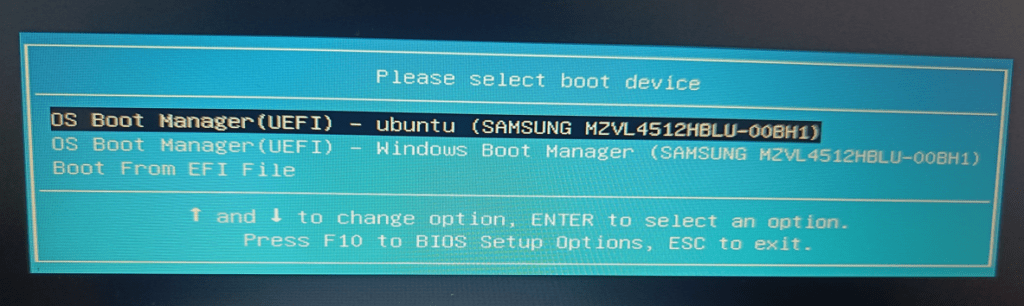
Check USB Boot option is enabled or disabled. Go to BIOS by pressing F10
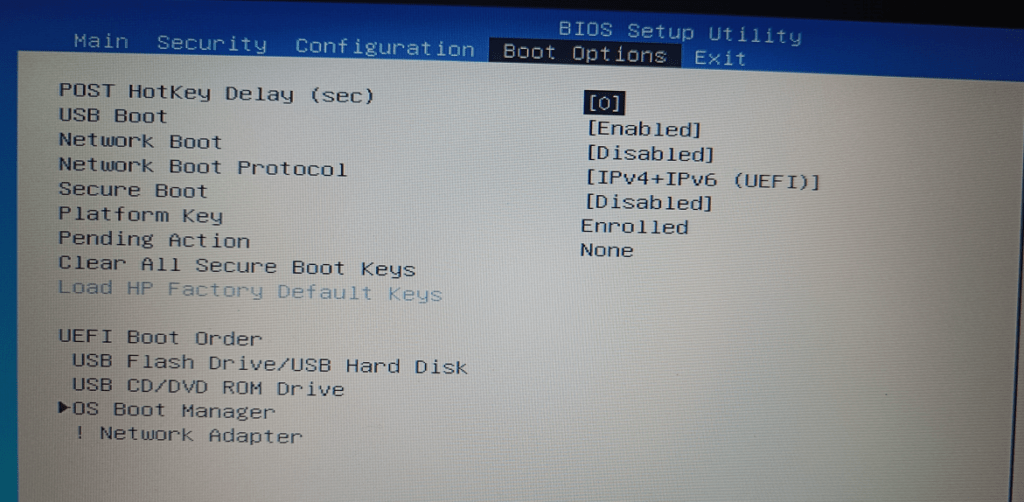
- Enable the USB Boot
- Disable Secure Boot
- Change the UEFI Boot Order by Pressing F5 and F6 to toggle the boot order.
- Make Sure in the first boot to be USB Flash Drive / USB Hard Disk
- Press F10 and save settings
- Shutdown the computer
Plugin in the USB Stick and Turn on the HP 240 G8 Laptop and keep pressing F9 to see the boot menu. If you do not see USB Stick Is Not Being Recognized as a Bootable Device, Even after enabling the setting correctly in BIOS. What could gone wrong in recognizing the USB Stick?
I talk to HP technical team, they could not solve the problem and kept trying to resolve in various method and various brands of USB Sticks but still the result was same.
I spent a day in finding the solution nothing was working and there was no much options left and was thinking of giving up the issue. But still mind was not accepting and next day i try to think different from the beginning.
USB stick comes in two version 2.0 and 3.0, the disk which i was trying to boot was USB 2.0. Now what did is to create a USB Bootable disk on USB Stick 3.0. To my surprise USB Stick Recognized as a Bootable Device, able to boot Window 10 OS.
If your computer does not recognize the USB Stick, check the USB Version 2.0 or 3.0 this should fix the problem
In HP 240 G8 laptop, the storage device is not recognized and need to install intel storage controllers drivers manually. Go to HP site and download Intel Rapid Storage Technology Driver.
Difference Between USB2.0 and USB 3.0
| USB 2.0, which operates in half-duplex mode | USB 3.0 supports full-duplex communication. |
| USB 2.0 has a maximum speed of 480 Mbps | USB 3.0 has maximum data transfer rate of 5 Gbps |
| USB 2.0 devices consume More Power | USB 3.0 devices consume less power |
Q1. Why is my bootable USB not detected?
A: The issue can be caused by incorrect boot mode (UEFI/Legacy), improper USB formatting, or BIOS settings.
Q2. Should I use MBR or GPT for bootable USB?
A: It depends on your system’s BIOS mode. Legacy BIOS requires MBR, while UEFI works with GPT.
Q3. Can Rufus fix bootable USB issues?
A: Yes. Rufus is a reliable tool when configured with the correct partition scheme.
Having other Windows problems? See our complete Windows 11 troubleshooting guide for beginners
The Bottom Line
A bootable USB not being recognized by your laptop is almost always caused by one of three things — a wrong BIOS setting, the wrong USB version, or the wrong partition scheme. In the case of the HP 240 G8, it was a combination of all three. Work through the BIOS settings first, then switch to a USB 3.0 stick, and you will solve the problem in the vast majority of cases.
If you are still stuck after trying everything above, leave a comment below with your laptop model and the error you are seeing — happy to help you work through it.
For more on bootable USB creation, BIOS settings, and USB troubleshooting, see our full hardware and USB devices guide.