

When installing a subscription-based Microsoft Office 2016 license on Windows 10 or Windows 7, you may encounter installation failures during setup. These issues are often related to Microsoft Office installation errors, especially when updates or system configurations interfere with the process.
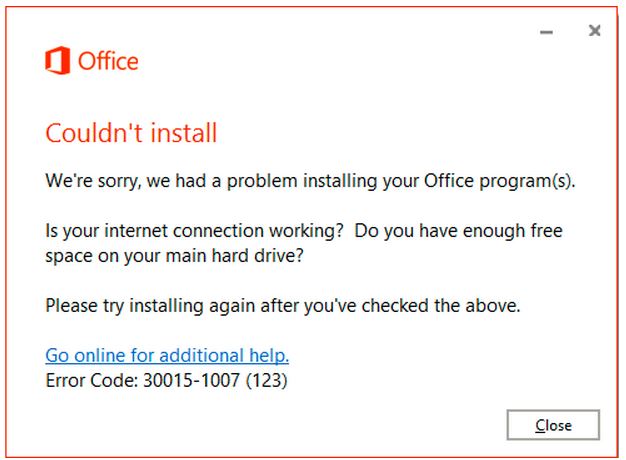
In some cases, this issue occurs due to conflicts with existing Office components or corrupted installation files, resulting in the message “Couldn’t Install – Error 30015-1007”
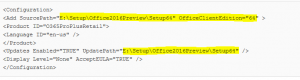
To fix the Office 2016 installation error, locate the configuration XML file used for the setup and open it with Notepad (or any text editor).
Inside the file, look for the UNC path that points to the location where the Office 2016 installation files are stored. This path may refer to different locations, such as a network share or local folder.
Verify that the path is correct, update it if necessary, and then save the XML file before running the installation again.
Q1. What causes Office error 30015-1007?
A: This error usually occurs due to corrupted Office installation files, conflicting older Office versions, antivirus interference, or network issues during setup.
Q2. Can I fix error 30015-1007 without reinstalling Windows?
A: Yes. In most cases, the error can be fixed by repairing Office, removing old Office remnants, and disabling antivirus temporarily.
Q3. Does this error affect Windows 10 and Windows 11?
A: Yes. Error 30015-1007 can occur on both Windows 10 and Windows 11 systems.