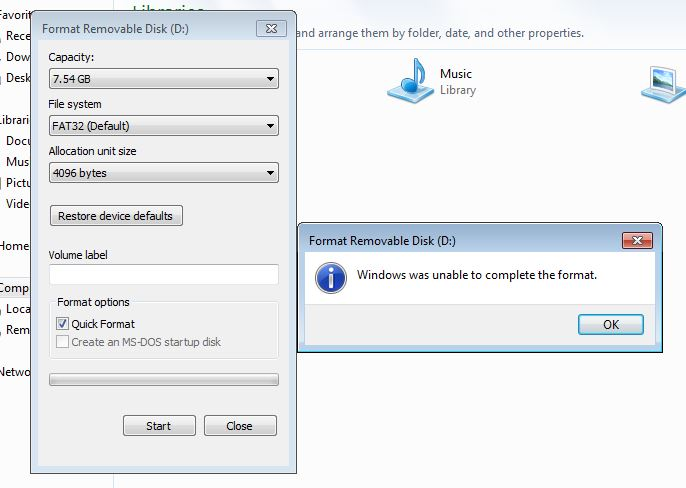
If you’re facing a USB pen drive error such as “Windows was unable to complete the format”, USB drive not detected, or corrupted USB flash drive, you’re not alone.
These errors are common on Windows systems and usually occur due to file system corruption, unsafe removal, virus infection, or hardware issues.
In this guide, you’ll learn:
Why USB pen drive errors happen
How to fix USB pen drive errors step by step
How to recover a corrupted USB flash drive
How to prevent USB errors in the future
This guide is written for beginners and everyday users, using simple language and safe methods.
This method fixes most “unable to complete the format” errors.
Method 3: Recover Corrupted USB Pen Drive Using ChipGenius
If formatting fails, your USB controller information may be damaged.
Steps:
Download ChipGenius
Plug in your USB pen drive
Open ChipGenius
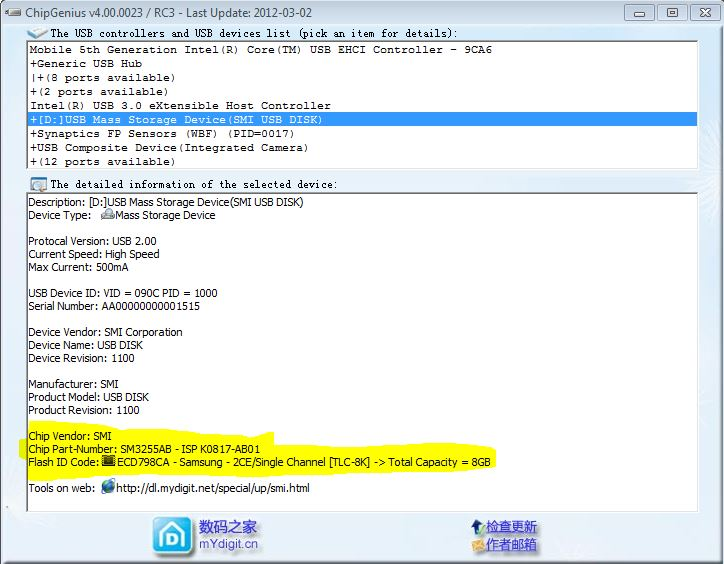
Note the Chip Vendor ID & Product ID
Search for the correct recovery tool using this information
Use the tool to repair the USB firmware
📌 This method is useful for Transcend, SanDisk, and generic USB drives.
Using ChipGenius to identify USB controller details
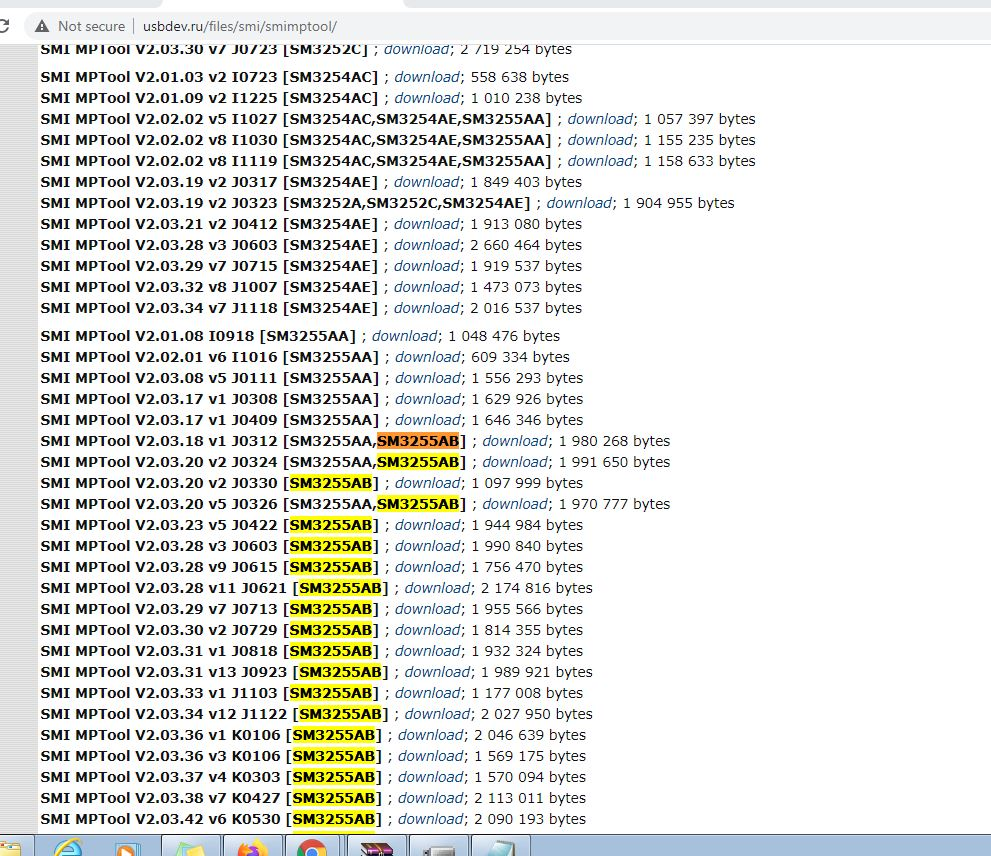
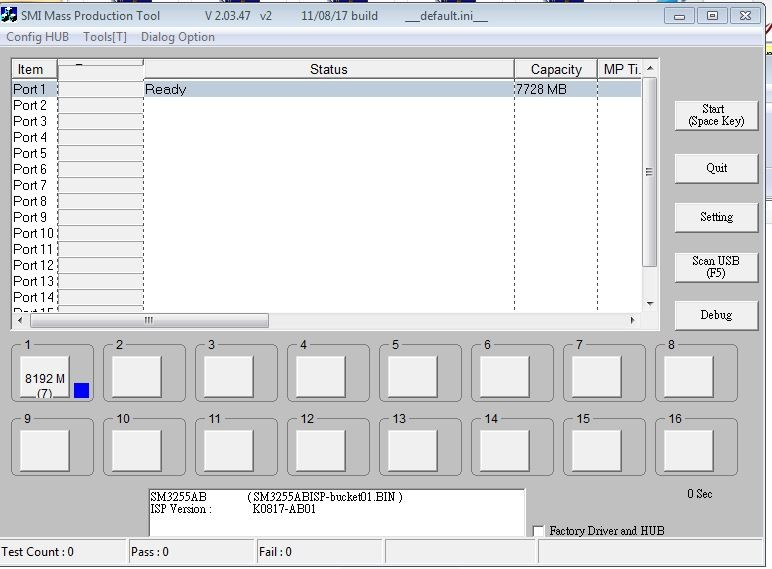
Open up this website https://www.usbdev.ru/files/smi/smimptool/ find the chip vendor, in my case it is SMI Chip Vendor and chip Part number is SM3255AB, Download the latest version software, extract the tool
Remove the USB Drive, before launching the tool, plug in and tool should detect as shown in the image
On the Tool click on start, this will start to rebuild your pen drive.
Once tool completes the Repair, you can now format the drive and start storing your files and folder on the USB Pen drive.
Method 4: Fix USB Pen Drive Error Using Third-Party Tools
If Windows tools fail, you can try trusted recovery utilities:
EaseUS Partition Master
MiniTool Partition Wizard
HP USB Disk Storage Format Tool
✔ Use only well-known tools ❌ Avoid unknown “one-click fix” downloads
How to Prevent USB Pen Drive Errors in the Future
Follow these tips to avoid USB problems:
Always use Safely Remove Hardware
Never unplug during file transfer
Scan USB drives for viruses
Avoid using USB drives on infected computers
Do not use cheap or counterfeit pen drives
Avoid leaving USB drives plugged in for long periods
Frequently Asked Questions (FAQ
Can a corrupted USB pen drive be fixed?
Yes. Most corrupted USB pen drives can be fixed using Disk Management, CMD, or recovery tools.
Does formatting fix USB pen drive errors?
Formatting works in many cases, but it erases all data.
Why does Windows fail to format USB drives?
Due to file system corruption, write protection, bad sectors, or hardware failure.
Is USB pen drive data recovery possible?
Yes, if the USB is detected, data recovery is often possible.
Final Thoughts
USB pen drive errors are frustrating, but most are fixable without replacing the drive. Start with basic Windows tools and move to advanced methods only if needed.
If one method doesn’t work, try the next — don’t panic.