
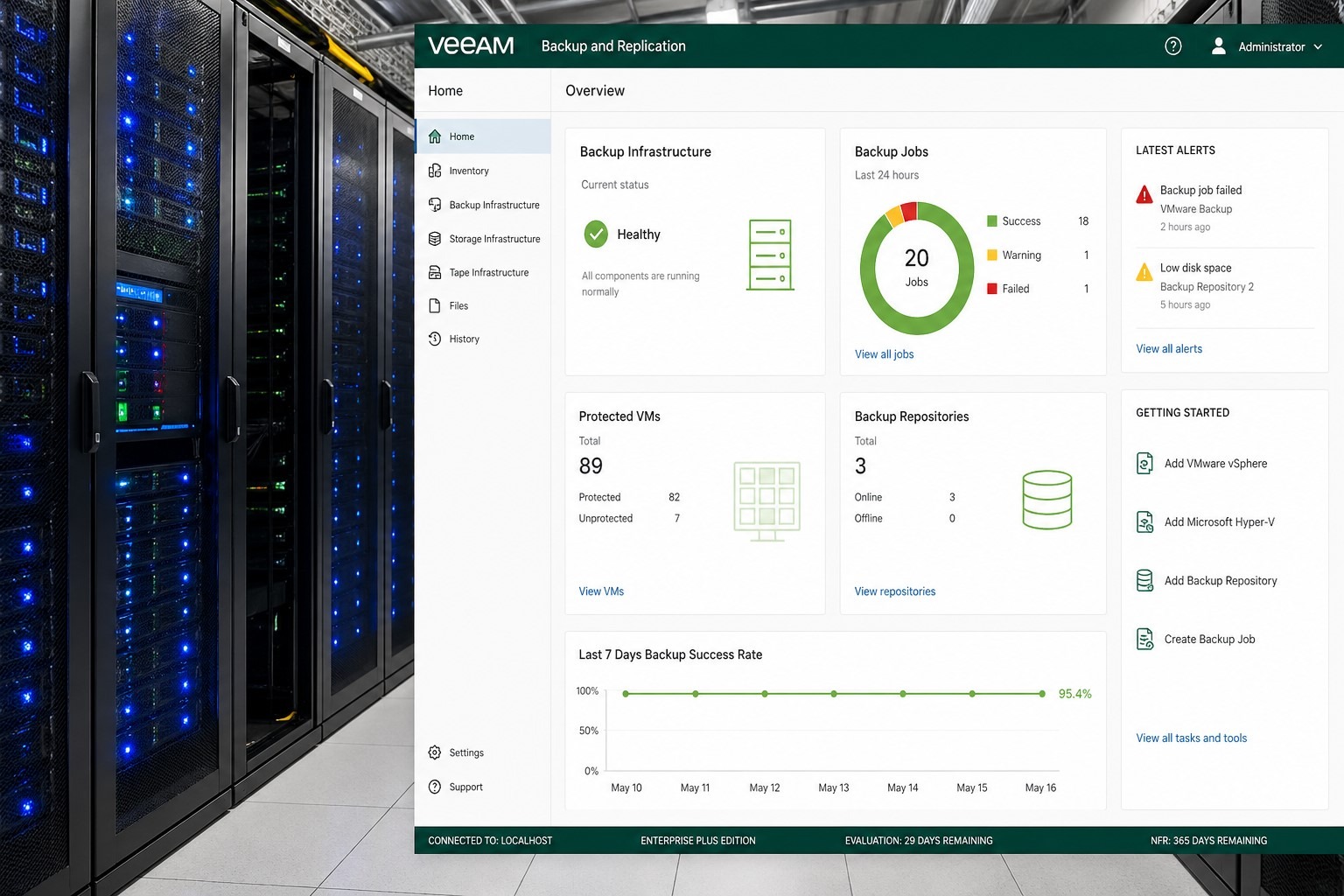
Fix Veeam errors · Resolve VMware issues · Run NetApp commands · Fix MDT Sysprep · Manage Veritas Backup Exec
Introduction
Enterprise IT infrastructure — backup systems, virtualisation platforms, storage arrays, and deployment tools — sits at the heart of every organisation’s operations. When these systems fail, the impact is immediate and business-critical. Veeam backup fails to inventory a guest system running SQL Server on SharePoint. VMware Workstation 8 cannot detect which operating system is in a disc image. MDT Sysprep and capture fails on Windows 10 build 1903 because BitLocker is blocking the generalisation process with error 0x80310039. The delete option in Veritas Backup Exec 10 is greyed out and no one can figure out why. These are not abstract problems — they are the specific situations that enterprise IT professionals face in production environments.
This pillar post is the definitive starting point on this site for everything related to backup, virtualisation, and enterprise IT. It maps all 10 guides in this cluster — from fixing the Veeam “Failed to inventory guest system” error using sqlcmd and the sysadmin role, to resolving VMware Workstation OS detection problems by selecting Windows 7 (x64) as a proxy, to the complete NetApp Data ONTAP command reference covering aggregates, volumes, qtrees, snapshots, SnapMirror, cluster failover, and vFiler/Multistore, to fixing the BitLocker-blocked MDT Sysprep failure with manage-bde, to managing Veritas Backup Exec 10 media sets with scratch media and retire media, to productivity tools for enterprise professionals including virtual backgrounds for Zoom, Microsoft Teams, Cisco WebEx, and Google Meet. Each section is written for the IT professional facing the problem today.

| 📌 Who this guide is for System administrators managing VMware virtualisation and Veeam backup, storage engineers working with NetApp Data ONTAP filers, IT deployment specialists using Microsoft Deployment Toolkit (MDT), backup administrators managing Veritas Backup Exec tape media, IT professionals preparing for VMware Certified Professional and other certifications using VCE files, and technical freelance consultants providing enterprise IT services. |
Table of Contents
| SECTION 1 Why Enterprise IT Errors Are Hard to Diagnose |
Enterprise IT errors share a characteristic that makes them particularly frustrating: the headline error message is often technically accurate but contextually misleading. Veeam reports “Failed to inventory guest system” — which sounds like a network or agent connectivity issue — when the actual problem is that the backup service account is missing the sysadmin role on a SQL Server instance. VMware Workstation reports it “could not detect which operating system is in the disc image” — which sounds like a corrupt ISO — when the real issue is that Windows 8 was simply not yet in VMware’s OS detection database. MDT Sysprep fails with error 0x80310039 when the real culprit is BitLocker silently protecting the OS volume even while the Control Panel shows it as Off.
In production enterprise environments, this misdirection is compounded by time pressure, limited access to change certain system settings, and the requirement to minimise downtime. This guide maps the exact root cause and fix for each scenario so you spend minutes resolving the problem rather than hours searching for an answer.
Four diagnostic principles for enterprise IT problems
- Read the full error log, not just the summary message — the root cause is almost always in the detailed log output, not in the headline error shown in the management console.
- Check service account permissions first for backup failures — the majority of Veeam and similar enterprise backup failures trace to insufficient permissions on the target system, not to the backup software itself.
- Check for silently active BitLocker before any Sysprep or imaging operation — Windows 10 build 1903 and later can have BitLocker active at the hardware level even when the Control Panel shows it as Off.
- Verify host machine requirements before configuring the guest — VMware Workstation 8 requires a 64-bit host processor; issues that appear to be guest configuration problems are sometimes host compatibility failures.
| SECTION 2 Quick Finder: Identify Your Problem |
Find your exact symptom and jump directly to the right section and fix.
| Your situation right now | Most likely cause | Go to |
| Veeam fails on SQL VM — “Cannot get host information” | Backup account missing sysadmin role on SQL Server | Section 3 — Veeam Fix |
| Veritas Backup Exec 10 — delete greyed out on media set | Media labels not moved to scratch/retire media first | Section 4 — Veritas Fix |
| VMware: “could not detect operating system in disc image” | Windows 8 not in VMware OS list — use Windows 7 (x64) | Section 5 — VMware Fix |
| MDT Sysprep and capture failed — error 0x80310039 | BitLocker active despite Control Panel showing Off | Section 6 — MDT Fix |
| Need NetApp Data ONTAP commands for aggregates/volumes/qtrees | Administration/troubleshooting reference needed | Section 7 — NetApp Part 1 |
| Need NetApp SnapMirror, vFiler, cluster failover commands | Replication/multi-tenancy reference needed | Section 8 — NetApp Part 2 |
| Need virtual background for Zoom, Teams, WebEx, Google Meet | Virtual background not yet configured | Section 9 — Virtual Background |
| Xbox profile error 80070428 — cannot download Gamertag | Profile download failure — recovery needed | Section 10 — Xbox Fix |
| Cannot open .VCE file for certification exam preparation | Visual CertExam Manager not installed | Section 11 — VCE Files |
| Want to start enterprise IT freelance consulting | No framework for freelance IT work yet | Section 12 — Freelance IT |
| SECTION 3 Veeam Backup — Failed to Inventory Guest System |
Veeam Backup & Replication is one of the most widely deployed enterprise backup solutions for VMware and Hyper-V virtual environments. The “Failed to inventory guest system” error is most commonly encountered in environments where virtual machines run SQL Server instances — particularly where SharePoint databases are hosted on SQL Server.
The exact error message
The full error reads: “Failed to inventory guest system: Cannot get host information. Cannot collect host info. Microsoft SharePoint farm topology collector process is failed with exit code -1 Win32 error: The operation completed successfully. Code: 0.” The final line reading “operation completed successfully” is misleading — the backup has in fact failed. The exit code -1 from the SharePoint farm topology collector is the diagnostic signal.
Root cause: missing sysadmin role on SQL Server
The Veeam backup service account must have the sysadmin server role on the SQL Server instances it backs up. Without this role, the SharePoint farm topology collector process — which Veeam uses to ensure application-consistent backups of SharePoint farms — cannot query the SQL Server and exits with code -1. The Windows domain service account used for Veeam backup must be explicitly granted the sysadmin role on the SharePoint SQL database instance.
Step-by-step fix using sqlcmd
This procedure restarts the MSSQL$SHAREPOINT service in single user mode, grants the sysadmin role to the Veeam service account, then restarts normally. Replace SHAREPOINT with your actual SQL instance name, DOMAIN with your Windows domain name, and “veeam service account” with your actual account name.
- Open an elevated Command Prompt (Run as Administrator).
- Stop the SQL Server service:
net stop MSSQL$SHAREPOINT
- Start SQL Server in single user mode with SQLCMD access:
net start MSSQL$SHAREPOINT /m SQLCMD
- Open the sqlcmd command line:
sqlcmd -S .\SHAREPOINT
- Create the Windows login and grant the sysadmin role:
USE [master];
CREATE LOGIN [DOMAIN\veeam service account] FROM WINDOWS WITH DEFAULT_DATABASE=[master];
EXEC sp_addsrvrolemember ‘DOMAIN\veeam service account’, ‘sysadmin’;
GO
QUIT
- Restart SQL Server in normal mode:
net stop MSSQL$SHAREPOINT
net start MSSQL$SHAREPOINT
- Re-run the Veeam backup job — the guest inventory should now complete successfully.
| ⚠️ Instance name varies by environment The SQL instance name MSSQL$SHAREPOINT is specific to this example. Check SQL Server Configuration Manager for the exact service name in your environment before running the net stop/start commands. |
Step-by-step guide:
- → Veeam backup — failed to inventory guest system fix — sqlcmd, sp_addsrvrolemember, sysadmin role, SharePoint SQL database
| SECTION 4 Veritas Backup Exec 10 — Delete Option Greyed Out on Media Set |
Veritas Backup Exec 10 is a widely deployed enterprise backup solution for Windows Server environments. A common configuration challenge is finding that the Delete option for a media set is greyed out in the right-click menu — administrators cannot remove old or unwanted media sets regardless of how many times they try.
Why the delete option is greyed out
Veritas Backup Exec 10 will not allow you to delete a media set while it still has media labels associated with it. This constraint prevents accidental deletion of media sets that may still contain backup data on assigned tapes. Before the delete option becomes active, every media label in the set must be moved to either scratch media or retire media.
Scratch media vs retire media
- Move to scratch media — if the tape is still in good condition and available for future backup jobs. Scratch media is the pool of unassigned, reusable tapes.
- Move to retire media — if the tape is worn out, damaged, or past its service life. Retired media is excluded from all future backup operations.
Step-by-step fix
- In Veritas Backup Exec 10, navigate to the Media section, then Media Sets.
- Select the media set you want to delete.
- For every media label in that set: right-click the label and move it to scratch media (if still usable) or retire media (if no longer needed).
- Once all media labels have been moved out of the set, right-click the media set again — the Delete option is now enabled and clickable.
- Click Delete to remove the media set.
Recommended backup job overwrite settings
When configuring backup jobs in Veritas Backup Exec, use the setting: Append to media, overwrite if no appendable media is available. This ensures jobs efficiently reuse partially written tapes before consuming scratch media, while still being able to overwrite expired media when no other media is available.
Step-by-step guide:
- → Delete a media set in Veritas Backup Exec 10 — greyed out fix — Scratch media, retire media, overwrite protection settings
| SECTION 5 VMware Workstation — Could Not Detect Operating System |
VMware Workstation 8 introduced a requirement for 64-bit host processors — the physical machine running the hypervisor must have a 64-bit CPU. When you create a new virtual machine and select a Windows 8 ISO image, VMware Workstation displays: “Could not detect which operating system is in the disc image.” This is not because the ISO is corrupted. Windows 8 was released after VMware Workstation 8 shipped, so it was not yet in the OS detection database.
The fix: manual OS selection
Bypass auto-detection by manually selecting the closest compatible OS entry from the VMware OS list:
- For Windows 8 32-bit: select Windows 7 from the OS list.
- For Windows 8 64-bit: select Windows 7 (x64) from the OS list.
The OS selection is used only to set default virtual hardware configuration values — it does not enforce any compatibility restriction. Windows 8 installs and runs correctly on VMware Workstation 8 once the OS selection is made manually.
Virtual disk storage options
When specifying the virtual disk for the new Windows 8 VM, VMware offers two options: store the virtual disk as a single file, or split the virtual disk into multiple files. Storing as a single file gives marginally better performance. Splitting into multiple files is useful only when the host file system has a per-file size limit — for example, FAT32 caps files at 4 GB, which would prevent a large single-file virtual disk.
Windows 8 Metro UI after installation
After installation completes in VMware Workstation 8, the Windows 8 Metro User Interface appears with the user account name displayed. Screen resolution is automatically adjusted by VMware Tools. The standard Windows 8 desktop is available alongside the Metro UI — all installation steps inside the VM are identical to a physical machine installation.
Step-by-step guide:
- → VMware Workstation could not detect operating system — fix — Windows 8 manual OS selection, 64-bit requirement, virtual disk configuration
| SECTION 6 MDT Sysprep and Capture Failed — BitLocker Fix (Windows 10 1903) |
Microsoft Deployment Toolkit (MDT) is the standard enterprise tool for building and deploying Windows images across large numbers of computers. The workflow builds a reference machine — with all patches, configurations, and applications installed — then uses Sysprep to generalise it before capturing a WIM image for mass deployment. On Windows 10 build 1903 and later, this process fails at the Sysprep stage with a specific BitLocker-related error that has a non-obvious cause and a simple fix.
Context: With Windows 7 reaching end-of-life on 14 January 2020, IT teams were migrating large numbers of corporate laptops and desktops to Windows 10. MDT with a standard corporate image — all patches applied, built-in consumer apps removed, corporate configuration in place — is the most efficient deployment method. Windows 10 build 1903 was an excellent baseline because it came with fewer outstanding patches than earlier builds, requiring significantly less update time on the Dell Latitude 5490 and similar corporate hardware.
The exact error
Info SYSPRP ActionPlatform::LaunchModule: Executing ValidateBitLockerState from BdeSysprep.dll
Error SYSPRP BitLocker-Sysprep: BitLocker is on for the OS volume.
Error Turn BitLocker off to run Sysprep. (0x80310039)
Error SYSPRP SysprepSession::Validate: Error in Generalize.xml; dwRet = 0x80310039
Error SYSPRP RunDlls: Error running registry sysprep DLLs; dwRet = 0x80310039
The Sysprep generalisation process calls BdeSysprep.dll to validate the BitLocker state via Generalize.xml. It detects that BitLocker is active on the OS volume and halts with error 0x80310039. The confusing part: the BitLocker Control Panel shows the drive as Off. This is a known issue on Windows 10 build 1903 — BitLocker is active at the firmware/hardware level despite what the UI reports.
The fix: manage-bde command line
- Open Command Prompt as Administrator.
- Force-disable BitLocker on C:
manage-bde -off C:
- Monitor the decryption status — wait for “Fully Decrypted”:
manage-bde -status
- Once status shows Fully Decrypted, re-run the MDT Sysprep and Capture task sequence.
Remove built-in Windows 10 consumer apps before capture
Before capturing the corporate image, remove built-in consumer apps that are inappropriate for a corporate environment. Run these in an elevated PowerShell session:
Get-AppxPackage *skypeapp* | Remove-AppxPackage
Get-AppxPackage *onenote* | Remove-AppxPackage
Get-AppxPackage *CandyCrushSaga* | Remove-AppxPackage
Get-AppxPackage *solitairecollection* | Remove-AppxPackage
Get-AppxPackage *bingfinance* | Remove-AppxPackage
Get-AppxPackage *zunemusic* | Remove-AppxPackage
Get-AppxPackage *windowsmaps* | Remove-AppxPackage
Get-AppxPackage *bingnews* | Remove-AppxPackage
The detailed guide linked below contains the full list of Get-AppxPackage Remove-AppxPackage commands covering all consumer apps recommended for removal in corporate images.
Step-by-step guide:
- → MDT Sysprep and capture failed on Windows 10 1903 — BitLocker fix — manage-bde, 0x80310039, BdeSysprep.dll, Get-AppxPackage list, Dell Latitude 5490
| SECTION 7 NetApp Commands Reference — Part 1: General, Aggregates & Volumes |
NetApp Data ONTAP is the operating system running on NetApp storage filers. For administrators learning NetApp or needing a quick reference during live troubleshooting, keeping the most important commands at hand reduces time spent searching documentation. Part 1 covers general system management, diagnostics, aggregate management, volume operations, and qtrees.
Key general commands
| Command | What it does | When to use |
| sysconfig -a | System configuration and hardware info | System audit and inventory |
| sysstat -s 5 | Live stats every 5 seconds: CPU, NFS, CIFS, NET, DISK | Performance monitoring |
| storage show disk | Physical disk information and health | Disk inventory |
| sasadmin shelf | Graphical shelf layout with disk slot occupancy | Physical location mapping |
| options trusted.hosts * | Allows all hosts admin access via telnet/http/ssh | Initial setup — restrict after |
| passwd | Changes password for logged-in user | Security maintenance |
| priv set diags | Enters diagnostics CLI mode from Data ONTAP CLI | Advanced troubleshooting |
| priv set | Returns to normal CLI from diagnostics mode | After diagnostics work |
| software update file -r | Installs software without automatic reboot | Controlled maintenance windows |
| halt | Reboots controller into bootrom | Hardware-level maintenance |
| reboot | Reboots controller back to Data ONTAP | OS-level restart |
Aggregate commands
- aggr create aggregate_name — creates a new aggregate.
- aggr status — shows status of all aggregates. aggr status aggregate_name for a specific aggregate.
- aggr status -r aggr0 — shows root volume on aggr0 and disk layout.
- aggr status -s aggr0 — shows spare disks on aggr0.
- aggr show_space aggregate_name — shows space details for a specific aggregate.
- aggr options aggregate_name raidsize=x — sets number of drives in the RAID group.
- aggr options aggregate_name nosnap=on — disables snapshot autocreation on the aggregate.
- snap reserve -A aggregate_name 0 — sets aggregate snap reserve to 0% (or any value).
- aggr offline aggregate_name / aggr online aggregate_name — takes an aggregate offline or brings it online.
Note: The Root Volume can only reside on a 32-bit aggregate. To create a 64-bit aggregate, create it as a separate aggregate from the one containing the root volume.
Volume commands
- vol create volume_name — creates a new volume.
- vol size volume_name +size k|m|g|t — increases volume size by KB, MB, GB, or TB.
- vol autosize volume_name on|off — enables or disables automatic volume growth.
- vol options volume_name — lists all options set on a volume.
- vol status -f — lists broken or failed disks across all volumes.
- vol scrub status -v — shows the scrubbing status of all volumes.
- vol options nosnapdir on|off — enables/disables snapshot directory visibility at the volume level.
Qtree commands
- qtree create /vol/volume_name/qtree_name — creates a qtree within a volume.
- qtree security /vol/volume_name/qtree_name unix|ntfs|mixed — sets the security style.
- qtree stats qtree_name — shows CIFS or NFS operations per second for a qtree.
- qtree status — displays all qtrees across all volumes.
| SECTION 8 NetApp Commands Reference — Part 2: Snapshots, SnapMirror & vFiler |
Part 2 of the NetApp command reference covers the commands most frequently used for snapshot lifecycle management, SnapMirror disaster recovery replication, cluster HA failover, and vFiler (Multistore) multi-tenancy configuration.
Snapshot management
- snap create volume_name snapshot_name — creates a named snapshot on a volume.
- snap list volume_name — lists all snapshots for a volume.
- snap delete volume_name snapshot_name — deletes a specific snapshot.
- snap delete -a volume_name — deletes all snapshots on a volume.
- snap restore -s snapshot_name volume_name — restores a volume to a specific snapshot point.
- snap autodelete volume_name show — displays autodelete settings for a volume.
- snap delta volume_name — shows the data changed between snapshots.
- snap reserve volume_name — shows the snapshot space reserve percentage for a volume.
- snap reclaimable volume_name snapshot_name — shows space recoverable by deleting a specific snapshot.
- options cifs.show_snapshot on — makes the .snapshot directory browsable via CIFS clients.
- options nfs.hide_snapshot off — makes the .snapshot directory visible to NFS clients.
SnapMirror replication
SnapMirror provides volume-level and qtree-level asynchronous replication between NetApp filers, used primarily for disaster recovery and data distribution. All initialisation and management commands are run on the destination filer unless otherwise noted.
- options snapmirror.enable on — enables SnapMirror on the filer (replace on with off to disable).
- snapmirror initialize -S srcfiler:source_volume dstfiler:destination_volume — initiates full baseline replication for volume mirroring.
- snapmirror initialize -S srcfiler:/vol/vol1/qtree dstfiler:/vol/vol1/qtree — initiates baseline for qtree-level replication.
- snapmirror status — shows all active SnapMirror relationships and their state.
- snapmirror status -l — detailed status including snapshot name, bytes transferred, and progress.
- snapmirror quiesce volume_name — pauses replication (first step when removing a relationship).
- snapmirror break volume_name — breaks the SnapMirror relationship, making the destination writable (second step).
- snapmirror resync volume_name — resyncs after working off the DR site and returning to primary.
- snapmirror update -S srcfiler:volume dstfiler:volume — forces a new snapshot and triggers replication.
- snapmirror release volume_name dstfiler:volume_name — removes a SnapMirror destination relationship.
The /etc/snapmirror.conf file on the destination filer controls the replication schedule. Example: srcfiler:vol1 dstfiler:vol1 – 15 * * * replicates every 15 minutes. Fields from right to left: day-of-week (0=Sun, 6=Sat), month, day-of-month, hour, minute.
Cluster HA commands
- cf enable / cf disable — enables or disables cluster HA.
- cf takeover — takes over resources from the partner controller during maintenance or failure.
- cf giveback — returns resources to the partner controller after a takeover.
vFiler (Multistore) multi-tenancy
vFiler enables partitioning a single NetApp filer into multiple isolated virtual filers, each with its own network identity, volumes, and access controls.
- vfiler status — shows status (running/stopped) of all vfilers.
- vfiler status -r — shows which volumes are assigned to each vfiler.
- vfiler limit — shows the current maximum vfiler count on the host.
- vfiler limit 16 — sets maximum vfiler count to 16 (check memory requirements first).
- vfiler rename old_name new_name — renames a vfiler.
- vfiler run vfiler_name setup — runs the vfiler setup wizard.
- ipspace create ipspacename — creates an IP namespace for vfilers sharing the same network address space.
Step-by-step guide:
- → NetApp commands reference guide — Part 2 — Snapshots, SnapMirror, /etc/snapmirror.conf schedule, vFiler, cf takeover/giveback
| SECTION 9 Set Up Virtual Background for Zoom, Teams, WebEx & Google Meet |
The shift to remote and hybrid working — accelerated by the COVID-19 pandemic — made video conferencing a daily requirement across enterprise IT teams. Virtual backgrounds let professionals replace messy or distracting home environments with clean, professional backdrops. The four major enterprise meeting platforms each have their own setup path.
Zoom
- Open Zoom and sign in.
- Click the Settings gear icon in the top-right corner.
- Select Virtual Background from the left menu.
- Select a default background or click + to upload a custom image. Zoom provides a virtual backgrounds library at zoom.us/virtual-backgrounds.
- During a meeting: click the arrow next to the video icon → Choose Virtual Background to switch.
Zoom Virtual Background only works on supported processor models — check Zoom’s system requirements page before expecting this feature to be available.
Cisco WebEx
- Open Cisco WebEx and sign in.
- Before joining a meeting, the My Preview Window shows — click the virtual background option on the right.
- Select a background, then join the meeting.
- During a meeting: in the self-view window, click the video option → Change virtual background.
Microsoft Teams
- Join a Teams meeting.
- Click the three dots (…) → Settings.
- Select “Show background effects.”
- Choose a background from the list or add a custom image.
- For custom backgrounds, copy image files to: %APPDATA%\Microsoft\Teams\Backgrounds
- Click Apply to enable.
Google Meet
- Go to meet.google.com and start or join a meeting.
- Click the vertical three-dot menu (⋮) → Settings.
- Select Change background and choose from the available options.
| 💡 All four platforms require a modern processor Zoom, Cisco WebEx, Microsoft Teams, and Google Meet all require a relatively recent CPU to render virtual backgrounds in real time. If the feature is not available on your machine, check the system requirements for your specific processor model. |
Step-by-step guide:
- → Set up virtual background for online meetings — Zoom, Cisco WebEx, Microsoft Teams, Google Meet — full setup for all four platforms
| SECTION 10 Recover Xbox Gamertag Error 80070428 |
Xbox Live error 80070428 appears as “Unable to download profile at this time” when attempting to sign in or recover a Gamertag. This typically occurs after a console reset, when switching to a different Xbox, or after a network configuration change that disrupts the Xbox Live profile download.
Fix: use the Recover Gamertag feature
- Sign out from all profiles on the Xbox. The shortcut: press X and select Yes to sign out completely from all profiles.
- From the Xbox dashboard, select Recover Gamertag and follow the on-screen instructions.
- Plug a USB keyboard into the controller port of the Xbox 360 to enter the required information more easily.
- Once the recovery process completes, the profile downloads to the console and sign-in works normally.
Recover a forgotten Xbox Live password
- Visit xbox.com/en-US/live.
- Click Sign In in the top-right corner.
- Click Forgot Password below the login box.
- Enter your registered email address and complete the verification image.
- Check your email for a verification message from Xbox Live and click the activation link.
- Set a new password or confirm your existing password.
Step-by-step guide:
- → Recover Xbox Gamertag error 80070428 — Recover Gamertag feature, USB keyboard method, Xbox Live password reset
| SECTION 11 Open VCE Files for IT Certification Exam Preparation |
IT certification exams — VMware Certified Professional (VCP), Microsoft MCSA/MCSE/Azure, Cisco CCNA/CCNP/CCIE, CompTIA A+/Network+/Security+, and Sun certifications — are a key pathway for career advancement in enterprise IT. Practice exam files are commonly distributed in the VCE (Visual CertExam) format, which cannot be opened in Windows without specialist software.
What is VCE format?
VCE (Visual CertExam) is a file format that simulates real certification exam conditions — same question structure, answer selections, timing, and review functionality. It is widely used to distribute exam dumps and practice questions. VCE files require Visual CertExam Manager to open, which is compatible with Windows 2000, XP, 2003, Vista, 2008, 7, and Windows 10. Visual CertExam Manager version 1.9.987 and Visual CertExam Suite 3.0.1 are the recommended versions.
Open a VCE file
- Download and install Visual CertExam Manager (version 3.0.1) on your Windows PC.
- Double-click any .VCE file — it opens automatically in Visual CertExam Manager.
- Use the exam player to practice questions in the same interface as the real certification exam.
Convert a VCE file to PDF
To study VCE content on a device without Visual CertExam Manager — for printing, annotation, or offline reading — convert it to PDF using Visual CertExam Suite’s Designer tool and PDFCreator (a free PDF printer):
- Install Visual CertExam Suite and PDFCreator.
- Navigate to C:\Program Files (x86)\Visual CertExam Suite and open Designer.exe.
- In Designer: File → Open → select the VCE file. This opens it in design/edit format.
- File → Print → select PDFCreator as the printer.
- PDFCreator converts the content to PDF and prompts you to save. The PDF can be read and printed on any device.
Step-by-step guide:
- → Open VCE Visual CertExam files in Windows — Visual CertExam Manager, VCE to PDF conversion, Designer.exe, PDFCreator
| SECTION 12 Become a Technical IT Freelance Consultant |
Technical IT freelance consultants command premium hourly rates because organisations need highly specialised skills — system administration, virtualisation, storage administration, server builds, backup engineering, troubleshooting hardware and application problems — for short-duration projects where a full-time hire is not justified. The skills are hard to find in the generalist contractor market, making qualified specialists consistently in demand.
Why enterprise IT skills attract freelance work
The skills covered in this guide — Veeam backup administration, VMware virtualisation, NetApp Data ONTAP storage management, MDT enterprise deployment, Veritas Backup Exec tape management — are precisely the kinds of specialised skills that attract well-paid freelance engagements. These are not general IT skills. Professionals who have hands-on experience with these tools and can solve the specific production problems documented in this cluster are valuable to any organisation that runs this kind of infrastructure.
What enterprise IT freelance work involves
- System administration — managing Windows Server, Active Directory, Group Policy, and related services on an ongoing or project basis.
- Building and configuring servers — deploying physical and virtual servers in VMware or Hyper-V environments from specification to handover.
- Backup and recovery design — implementing and troubleshooting enterprise backup solutions, including Veeam, Veritas Backup Exec, and similar tools.
- Storage administration — managing NetApp, EMC, or other enterprise storage arrays on an administration or project basis.
- Troubleshooting hardware and application problems — the kind of complex, production-critical issues covered throughout this guide.
Frequently Asked Questions
Why does Veeam fail to inventory a guest system on SQL Server?
The Veeam backup service account is missing the sysadmin role on the SQL Server instance. Grant it using sqlcmd in single-user mode: stop MSSQL$SHAREPOINT, restart with /m SQLCMD, run sp_addsrvrolemember to grant sysadmin, then restart the service normally.
Why is the delete option greyed out in Veritas Backup Exec 10?
You cannot delete a media set while it still has media labels assigned. Move all labels to scratch media (if the tape is reusable) or retire media (if the tape is spent) first. Once the set is empty, the Delete option becomes active.
How do I fix “VMware Workstation could not detect operating system”?
Windows 8 was not in VMware Workstation 8’s OS database at launch. Manually select Windows 7 (for 32-bit) or Windows 7 x64 (for 64-bit) from the OS list instead. Windows 8 installs and runs correctly with this selection — the listing only affects default hardware settings.
How do I fix MDT Sysprep error 0x80310039?
BitLocker is active on the OS volume even though Control Panel shows it as Off. Run manage-bde -off C: in an elevated Command Prompt, wait for manage-bde -status to show Fully Decrypted, then re-run the MDT Sysprep and Capture task sequence.
What is NetApp SnapMirror and how do I initialise it?
SnapMirror replicates volumes or qtrees between NetApp filers for disaster recovery. Initialise with: snapmirror initialize -S srcfiler:volume dstfiler:volume (run on destination). Monitor with snapmirror status. Quiesce then break to remove a relationship. Resync after returning from DR site.
Can I open a VCE file without Visual CertExam Manager?
No — VCE files require Visual CertExam Manager to open. You can convert them to PDF using Visual CertExam Suite’s Designer.exe with PDFCreator as the printer, which produces a printable PDF version of the exam content without needing the VCE software.
What enterprise IT skills are most valuable for freelance consulting?
VMware virtualisation, Veeam and Veritas backup administration, NetApp Data ONTAP storage management, and MDT Windows deployment are consistently in demand for short-term engagements. These specialised skills attract premium hourly rates because qualified practitioners are scarce in the general contractor market.
Conclusion
Enterprise IT infrastructure problems carry disproportionate business impact — a failed Veeam backup, a stalled MDT deployment, or an inaccessible VMware virtual machine can halt operations across an organisation. The guides in this cluster target the specific, non-obvious fixes that standard documentation rarely surfaces clearly: the missing sysadmin role that causes Veeam guest inventory failure, the OS selection workaround that gets Windows 8 running in VMware Workstation 8, the manage-bde command that unblocks a BitLocker-stalled Sysprep, and the media label movement that finally enables the greyed-out delete in Veritas Backup Exec 10.
The NetApp command references provide a complete Data ONTAP administration toolkit — from aggregate and volume management through snapshot scheduling and SnapMirror DR replication to vFiler multi-tenancy and cluster HA failover — in a format designed for quick lookup during live sessions. Use this pillar post as your starting index for the whole enterprise IT cluster.
| 🔗 More topic clusters on this site Windows OS Troubleshooting & Performance | Data Recovery & Storage Management | Networking, VPN & Remote Access | Security & Password Management | Microsoft Office & Productivity Apps |
External References
→ VMware: VMware Workstation Pro documentation — official reference
→ NetApp: ONTAP documentation — official command and administration reference