
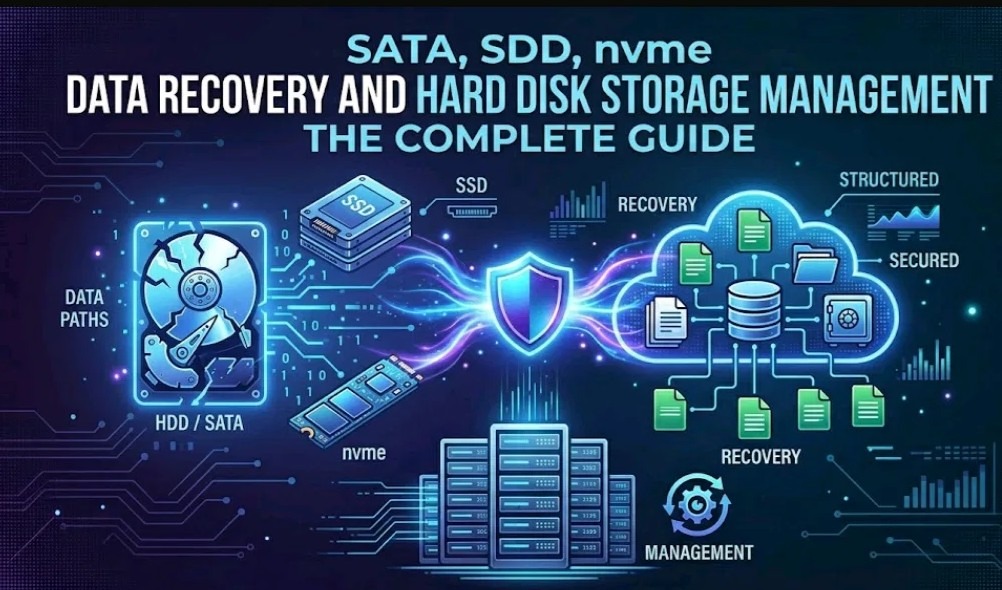
Recover deleted files · Fix corrupted drives · Rescue SD cards · Monitor SSD health · Wipe drives securely
| 🚨 Just lost data? Do this first — right now STOP using the drive immediately. Every file you open, every program you launch writes new data that can overwrite what you are trying to recover. Scroll to the Quick Finder table below, identify your situation, and follow the link to the exact guide. |
Introduction
Data recovery is one of the most urgent problems a computer user or IT professional can face. Whether you have accidentally deleted photos from a camera memory card, found your hard drive inaccessible after a system crash, or are hearing a hard drive making a clicking or knocking noise — the feeling is immediate and stressful.
The good news is that in the majority of cases, the data is not gone. It can be recovered with the right tool and the right steps.
This pillar post is the single starting point on this site for everything related to data recovery and storage management. It covers all 13 scenarios covered by the guides in this topic cluster — from recovering accidentally deleted photos using Recuva or DiskDigger, to fixing a corrupted NTFS partition, rescuing photos from an SD card prompting for format, dealing with a SMART hard disk error 301, monitoring NVMe SSD disk health in Windows 10, and permanently deleting sensitive data using CCleaner Drive Wiper or Disk Scrubber.
Each section is written for the home user first, with the technical detail below for IT professionals.
| 📌 Who this guide is for Home users who accidentally deleted files or photos, IT professionals dealing with failing hard drives, Windows administrators managing disk alignment and performance, and anyone choosing between data recovery tools for the first time. Covers Windows 7, 8, 10, and 11. |

Quick Finder: Identify Your Situation
Find your scenario in the table below and jump directly to the right section or guide. Do not write anything to the affected drive while looking this up.
| Your situation right now | Most likely cause | Go to |
| Accidentally deleted photos on camera, USB drive, or PC | File deleted — not yet overwritten | Section 3 — Deleted Files & Photos |
| Recycle Bin emptied or Shift+Delete used | Windows deletion — recoverable quickly | Section 3 — Deleted Files & Photos |
| Drive shows RAW format or 0 bytes | Corrupted NTFS file system | Section 4 — Corrupted NTFS |
| Hard drive inaccessible after crash or virus | File system failure or malware damage | Section 4 — Corrupted NTFS |
| Unsaved Excel file lost after crash or accidental close | AutoRecover not set or disabled | Section 5 — Lost Files (Excel, Outlook) |
| Outlook OST or PST file corrupted | Improper close or malware infection | Section 5 — Lost Files (Excel, Outlook) |
| Hard drive making clicking noise or knocking sound | Read/write head or actuator arm failure | Section 6 — HDD Clicking & SMART |
| SMART hard disk error 301 on startup | Head-to-spindle contact loss or magnetic layer damage | Section 6 — HDD Clicking & SMART |
| SD card prompting for format / showing 0 bytes | FAT32 corruption or file system failure | Section 7 — SD & Memory Card Recovery |
| USB pen drive, microSD, or flash card not reading | File system corrupt or device failure | Section 7 — SD & Memory Card Recovery |
| Need to choose a data recovery software tool | Deleted files, formatted or corrupted drive | Section 8 — Best Recovery Software |
| Bought a USB drive that shows wrong capacity | Fake USB flash device | Section 9 — Fake USB Detection |
| Selling or disposing of a PC — need data unrecoverable | Simple delete or format not sufficient | Section 10 — Permanent Data Deletion |
| SSD health warning in Windows 10 notifications | NVMe SSD health check triggered | Section 11 — SSD Health Monitoring |
| PC suddenly much slower — wondering about SSD vs HDD | Electromechanical vs solid-state performance | Section 12 — SSD vs HDD Performance |
| Dynamic disk partition alignment issues on Windows server | 1MB offset / MBR/GPT misalignment | Section 13 — Disk Alignment |
| SECTION 3 Recovering Accidentally Deleted Files & Photos |
When you delete a file — even using Shift+Delete or emptying the Recycle Bin — Windows does not erase it. It only removes the file from its index and marks that disk space as available. The actual data sits on the drive untouched until new data is written over it. This is why the first rule is always: stop using the drive the moment you realise something is missing.
Windows tries to protect you with the Recycle Bin, but it does not cover external USB drives, USB flash drives, memory sticks, or mapped network drives. If you deleted files from any of these locations, they bypassed the Recycle Bin entirely — but they can still be recovered with the right software.
Which tool to start with
Start with Recuva (free, by Piriform). It is the fastest option for most users — install it on a different drive from the one you are recovering, run a deep scan, preview the files before restoring, and save to a separate location. DiskDigger is a strong alternative, particularly for photo recovery from cameras and phones. For more severe situations — formatted or corrupted drives — see Section 8 (Best Data Recovery Software).

Recovering deleted photos specifically
Photos are the most commonly lost file type and the most urgent to recover. JPEG files begin with the hex signature FF D8 FF, and most recovery tools use this to find and reconstruct photos even from drives with damaged file systems. If the photos were on a camera SD card that is prompting for format, go to Section 7 first before running any recovery tool.
Step-by-step guides:
→ Successful methods for recovering lost data — Deleted files, formatted drives, Excel & Outlook recovery
| SECTION 4 Data Recovery from a Corrupted NTFS Hard Drive |
NTFS (New Technology File System) is the file system Windows uses on almost all modern hard drives. When it becomes corrupted — due to an improper shutdown, bad clusters, virus or spyware infection, or a failing drive — Windows either reports the drive as RAW, shows it as 0 bytes, or simply says the drive is not accessible.
Connecting the crashed hard drive as a secondary drive to another PC usually shows the same error. A common trigger is an infected USB pen drive transferring a virus to the system, which then corrupts the file system structures.
Antivirus tools like Trend Micro can detect the infection but may not repair the resulting file system damage.
A common trigger is an infected USB pen drive transferring a virus to the system, which then corrupts the file system structures. Antivirus tools like Trend Micro can detect the infection but may not repair the resulting file system damage.
ComboFix: recovering data after malware-caused corruption
If the corruption was caused by malware or spyware, ComboFix (a free freeware tool designed for spyware removal) can sometimes reverse file system damage that conventional recovery software cannot. It runs in a DOS-like mode, scans for known malware including SurfSideKick, QooLogic, and Look2Me variants, removes them, and in many cases restores visibility of the file structure. After ComboFix completes, it generates a report — enable “show hidden files and folders” in Folder Options to see repaired files that were hidden during the infection.
GetDataBack for NTFS: deeper recovery
If ComboFix cannot recover the data, GetDataBack for NTFS is one of the most effective tools for this specific scenario. Unlike standard tools that rely on Windows to access the drive, GetDataBack uses intelligent deep scanning of the entire hard drive directly, locating and re-creating damaged NTFS volumes, file system structures, and individual files. It supports recovery from drives that have been accidentally formatted, repartitioned, or made completely inaccessible. A live preview lets you see exactly what is recoverable before paying for the licence.
FAT16, FAT32, NTFS5, ExFAT — all covered
Hard disk recovery software typically supports recovery from FAT16, FAT32, NTFS, NTFS5, and ExFAT formatted partitions. If your drive uses one of the older FAT formats (common on older USB pen drives and SD cards), standard NTFS recovery tools may not work — choose a tool that explicitly lists FAT support.
| ⚠️ Do not format the drive Windows often prompts “You need to format the disk in drive X: before you can use it.” Do not click Format. This does not help and makes recovery significantly harder. Close the prompt and go straight to a recovery tool. |
Step-by-step guide:
- → Data recovery from a corrupted NTFS hard drive — GetDataBack walkthrough, partition recovery
| SECTION 5 Recovering Lost Excel Files & Corrupted Outlook Emails |
Not every data loss involves a failing drive. Two of the most common everyday data loss scenarios are closing an Excel file without saving — particularly after a system hang — and dealing with a corrupted Outlook PST or OST file.
Recover unsaved Excel data with AutoRecover
Office 2016 and later automatically saves open files at regular intervals to a hidden UnsavedFiles folder at C:\Users\[username]\AppData\Local\Microsoft\Office\UnsavedFiles. To make sure this is active: open Excel → File → More → Options → Save → tick “Save AutoRecover information every X minutes” and “Keep the last auto-saved version if closed without saving.” If you have already closed without saving, check that folder immediately before doing anything else.
Recover corrupted OST and PST files in Outlook
PST files can become corrupted if Outlook is not properly closed, or if emails contain malware that damages the file. A corrupted OST file is common when the Exchange server becomes unreachable or when an account is disabled. Tools that recover and convert OST/PST files can output recovered emails in PST, MSG, EML, or MBOX format — useful when you need to migrate mail data or access old emails from a disabled account.
Step-by-step guide:
- → Successful methods for recovering lost data — Covers Excel AutoRecover and OST/PST recovery
| SECTION 6 Hard Drive Clicking Noise & SMART Hard Disk Error 301 |
A hard drive making a clicking noise or knocking sound is one of the most alarming things to encounter on a PC. The sound is the read/write head repeatedly failing to locate the servo tracks on the hard drive platter — caused by the actuator arm knocking against other components inside the drive. In some cases it is the actuator arm that has become stuck; in others the spindle motor or platter surface itself has failed.
What causes the clicking sound
Data is written to and read from the hard disk platter surface by a read/write head located at the end of an arm that moves across the platter as the disk spins. A faulty hard disk that produces a knocking sound has a fault on its read/write head. The majority of disk failures are caused by damage to the magnetic layer, wear or damage to the spindle bearings, or failure of the drive electronics. Physical jarring of the drive or contaminants getting between the head and platter are the most common triggers.
The PC-3000 software tool can accurately detect a weak head on IBM, Western Digital, and some Seagate drives using service area surface checking functions — useful for diagnosing whether a professional recovery is justified before paying for a cleanroom service.
SMART hard disk error 301 — what it means
SMART (Self-Monitoring, Analysis, and Reporting Technology) is a built-in self-test system in all modern hard drives. A SMART hard disk error 301 appears during Windows startup as a warning that the drive has detected an imminent failure. One of the key reasons for error 301 is that the read/write head has lost contact with the spindle, or the magnetic layer on the platter has been slightly damaged. At this stage the BIOS diagnostics quick test and full hard disk test may still pass 100% — but the SMART error is the reliable early warning.
The correct response when you see a SMART hard disk error 301 is to save your time and data: back up everything immediately, then replace the drive. Ignoring the error risks the disk stopping responding entirely, at which point your only option is a professional data recovery service or tools like flobo hard disk repair.
What to do if your hard drive is clicking right now
- Back up all data immediately if the drive is still readable.
- Connect the failed hard drive as a secondary disk to a working PC.
- Use hard disk recovery tools to attempt data recovery — these support FAT16, FAT32, NTFS, NTFS5, and ExFAT formatted partitions.
- If data is not visible, refer to the NTFS recovery guide (Section 4).
- Do not attempt to open the drive case outside a clean room — contamination will cause further damage.
| 💡 Free diagnostic tool Install CrystalDiskInfo (free) and run it at startup. It surfaces SMART attribute warnings before a drive fails completely — giving you time to back up rather than recover. |
Step-by-step guides:
- → Hard drive making a clicking noise — causes and what to do — PC-3000, actuator arm, recovery options
- → SMART hard disk error 301 — diagnose and respond — BIOS tests, what to do next, replacement guide
| SECTION 7 SD Card & Memory Card Data Recovery |
SD cards, microSD cards, USB pen drives, flash cards, thumb drives, memory sticks, MMC cards, and XD cards are a non-volatile storage type — easy to insert, written, erased, and rewritten, and easy to carry. But they are also among the most frequently corrupted storage media in everyday use, because they are inserted and removed across different computers where they often pick up malicious virus, spyware, and malware that corrupts the data.
SD card prompting for format — do not format
The most common symptom is the SD card prompting for format when inserted into a computer or camera. Windows reports “This disk in drive X: is not formatted. Do you want to format it now?” Recovery tools like ZAR Recovery and R-delete can detect the card in this state, but often show the disk size as “0 bytes” — meaning the file system structure needs to be rebuilt before files become visible.
A reliable method for this specific scenario: create a bootable Ubuntu USB drive using LinuxLive USB Creator, boot from it, and insert the SD card. Linux’s file system handling often mounts and reads cards that Windows cannot access at all. Copy the files directly to a second USB pen drive. This method has successfully recovered summer holiday photos and other irreplaceable memories from SD cards that photo studios had given up on.
Android phone slow after memory card upgrade
A less obvious scenario: if your Android phone became very slow after upgrading to a larger microSD card, the card is likely not corrupted but simply not formatted correctly for the phone. The solution is to format it through the phone’s own settings (Settings → Storage → Unmount SD card → Format SD card), which creates the correct file system for the device. Mobile games and apps then read the data at the correct speed.
Supported card types
Good memory card recovery tools support all major types: pen drives, flash cards, thumb drives, memory sticks, micro drives, MMC cards, and XD cards. They recover deleted audio, video, photos, and other data — and can recover data after formatting storage media as well as from cards that are corrupt or physically damaged.
Step-by-step guides:
| SECTION 8 Best Data Recovery Software for Hard Drives |
The right data recovery software depends on three things: what caused the data loss, what type of drive is affected, and how much the data is worth to you. For most home users, start with a free tool. If it does not work, move to a paid option. Never install the recovery software on the same drive you are trying to recover.
Start here: free tools
- Recuva (free, Piriform) — best first attempt for deleted files on HDDs and USB drives. Fast scan, file preview, simple GUI.
- DiskDigger (free tier) — strong for photo recovery from cameras, USB pen drives, and SD cards.
- GetDataBack for NTFS (paid, trial available) — best for corrupted NTFS partitions and reformatted hard drives. Does not use Windows to access the drive.
When free tools are not enough
- Ontrack EasyRecovery Professional — disk tests, partition tests, advanced recovery, deleted recovery, format recovery, and raw recovery modes. One of the highest success rates for severely corrupted media.
- ComboFix (free) — specifically for file system corruption caused by malware or spyware infection. Recovers files hidden by the infection.
- R-Studio — for IT professionals needing RAID reconstruction or deep partition analysis.
| Tool | Best for | Key scenario |
| Recuva | Deleted files — HDD and USB | Emptied Recycle Bin, accidental delete |
| DiskDigger | Photos from cameras/phones | SD card, USB pen drive, microSD |
| GetDataBack for NTFS | Corrupted/formatted HDDs | RAW drive, 0 bytes, inaccessible partition |
| ComboFix | Malware-corrupted file systems | Virus/spyware caused data loss |
| Ontrack EasyRecovery Pro | Severe corruption, all scenarios | Format recovery, raw recovery, disk tests |
| R-Studio | IT pros, RAID, advanced | Server storage, complex partition recovery |
| CCleaner Drive Wiper | Secure deletion (not recovery) | Wiping free space, selling a PC |
Step-by-step guide:
- → Best data recovery software for hard drives — reviewed — ComboFix, Ontrack, step-by-step screenshots
| SECTION 9 Fake USB Flash Devices — Spot Them Before You Lose Data |
Counterfeit USB flash drives and SD cards are a significant and underappreciated cause of data loss. When buying a USB device, beware of fake USB devices — they report a false capacity to Windows (say, 128 GB) while physically containing only 4 or 8 GB of real storage. Windows accepts writes across the full reported space, then silently discards data once the true capacity is exceeded. By the time you notice, the files you thought were safely stored are partially or completely gone.
How to test for a fake USB flash device
Use H2testw (free, Windows) — it writes a known test pattern across the entire reported capacity and verifies the read-back. Any discrepancy between the reported size and actual size is immediately caught. FakeFlashTest is a faster alternative. Both tools give a clear pass or fail result in minutes and should be run on any new USB pen drive or SD card purchased from an unfamiliar source.
| SECTION 10 Permanently Delete Files & Wipe a Hard Drive Securely |
Most users think that using Shift+Delete or emptying the Recycle Bin permanently deletes files from the computer hard drive. It does not. The operating system only removes the file from the index — the actual elements that make up the file remain completely intact on disk. The file is permanently deleted only after many write operations on the same block. On a large hard drive, that deleted space may never be reused. This means anyone with data recovery software — including Recuva, DiskDigger, or Ontrack — can recover it.
There are free shareware tools like Undelete, Recuva, and EaseUS Data Recovery Wizard that can recover deleted files easily. This is exactly why simply deleting sensitive data is not enough before selling or disposing of a PC.
CCleaner Drive Wiper — the recommended first step
CCleaner (free, Piriform) includes a Drive Wiper tool under Tools → Drive Wiper. You can choose to overwrite free space only (to protect files already deleted) or wipe the entire partition. A Simple Overwrite is sufficient for most purposes — it makes data irrecoverable by standard software. For sensitive data, choose a more advanced overwrite method that satisfies the DoD standard, ensuring files are irrecoverable even with the most advanced recognised recovery techniques. CCleaner v3 or later is required.
Disk Scrubber — GUI-friendly complete disk erasure
Disk Scrubber is a free GUI tool that removes data from your hard disk securely, so that it cannot be recovered in the future. It can delete an entire disk drive and confirm that deleted data is actually removed — not just removed from the index. Note: it requires MS Framework 2.0 and supports Windows XP, Vista, 2000, and 2003. Once you delete data using Disk Scrubber, it cannot be recovered using any kind of disk recovery software, so double-check before running it.
| ⚠️ For SSDs, standard overwrite is not enough SSDs use wear levelling, which means overwrite passes may not reach every cell that contains your data. For SSDs, use the drive manufacturer’s Secure Erase tool (Samsung Magician, Intel SSD Toolbox) which triggers a firmware-level erase of every cell. |
Step-by-step guides:
- → Wipe hard drive — delete files permanently — CCleaner Drive Wiper, overwrite levels explained
- → Disk Scrubber — powerful tool that removes data from disk securely — Full disk erasure, download, requirements
| SECTION 11 Windows 10 NVMe SSD Disk Health Monitoring |
Windows 10 Build 20226 and later includes a new storage health monitoring feature specifically for NVMe SSD disk drives. It monitors health conditions including estimated disk life, read and write I/O performance, internal errors, and storage capacity levels — and sends a notification when action is needed.
This feature does not support SATA SSDs or electromechanical hard disk drives (HDD).
How to check SSD health in Windows 10
When Windows 10 displays a storage health warning, go to: Start → Settings → System → Storage → Manage disks and volumes, then select Properties for the problematic disk to see additional details. The alert notification helps users take action and prevent data loss by backing up data before the SSD stops working.
Key NVMe health indicators
- Disk life estimate — how much rated endurance remains
- Storage capacity — whether the drive is approaching full
- Performance degradation — whether read/write I/O has slowed below normal
- Internal errors — any disk read and write I/O errors logged by the drive firmware
| 💡 How to get this feature Update via Settings → Update & Security → Windows Update. Build 20226 or later is required. After updating, Windows 10 monitors NVMe SSDs automatically in the background. |
Step-by-step guide:
- → Windows 10 NVMe SSDs disk health monitoring feature — Setup, warning messages, what each alert means
| SECTION 12 Why SSD Drives Perform Better Than Hard Drives in Windows 10 |
Many users want to understand the difference between SSD and electromechanical drives and why SSD drives perform better in Windows 10. The answer comes down to how each type stores and reads data.
An electromechanical hard disk uses two key mechanical components: a spindle motor to rotate one or more layers of platters, and an actuator arm to move a read/write head across the platter surface.
SSDs are made from semiconductor components using NAND flash memory. The NAND flash cell uses floating gate transistors — electrical charge is stored on the floating gate separated by an oxide insulating layer.
Electromechanical hard drives
An electromechanical hard disk uses two key mechanical components: a spindle motor to rotate one or more layers of platters, and an actuator arm to move a read/write head across the platter surface. Heads are energy converters — they transform electrical signals to magnetic signals (write) and back to electrical signals (read). Shock and vibration can displace the position of platters and cause disk read/write errors. They require more power to spin the platters and move the actuator.
SSDs: NAND flash memory
SSD drives are made from semiconductor components using NAND flash memory. The NAND flash cell uses floating gate transistors — electrical charge is stored on the floating gate separated by an oxide insulating layer. If charged, the cell holds binary value 0; if erased, binary value 1. Crucially, if there is no power to NAND devices, the state of the floating gate binary value is not affected — the drive retains data without power. SSDs require smaller physical size, are removable, use lower power, and deliver higher performance. They also handle shock and vibration that would damage a spinning hard drive.
Why Windows 10 is optimised for SSDs
Windows 10 runs a TRIM command in the background for SSDs, which optimises performance by cleaning up deleted blocks before they are needed for new writes. To verify TRIM is enabled, run in an elevated Command Prompt: fsutil behavior query DisableDeleteNotify — a result of 0 means enabled, 1 means disabled. To enable it: fsutil behavior set DisableDeleteNotify 0.
Windows 10 does not defragment SSDs the way it does electromechanical drives. Defragmentation on SSDs is unnecessary and actually decreases lifespan by causing additional write/erase cycles. NAND flash cells degrade every time data is erased and written — wear levelling distributes writes evenly so each block is used to capacity before moving to a new one.

Step-by-step guide:
- → Why SSD drive performs better in Windows 10 — full explanation — NAND flash, TRIM, wear levelling, SSD vs HDD comparison
| SECTION 13 Aligning Dynamic Disks in Windows for Better Performance |
Disk alignment has become very important for Windows administrators, as it directly improves performance and improves the I/O file storage throughput — particularly on database servers and virtualised environments. In Windows 2008 and above, Microsoft introduced a 1MB offset where all disks are properly aligned in the back-end storage by default. However, dynamic disks created with older tools or migrated from older systems often do not have this offset.
How misalignment affects performance
When a dynamic disk partition is not correctly aligned, a write operation that Windows believes targets a single logical sector may actually span two physical sectors on the underlying storage. This causes the controller to perform a read-modify-write across two sectors for what should be a single operation — roughly doubling the I/O cost of every write. On a database server with thousands of writes per second, this compounds into a significant and measurable performance penalty.
Checking alignment with diskpart
Run diskpart from an elevated command prompt, type list disk, select the disk, then type list partitions. Look at the Offset column: if the drive uses an MBR partition style, the offset will be 31KB — which means it is misaligned. If it uses GPT partition style, the offset should be 17KB. A correctly aligned Windows 2008+ disk shows a 1MB (1024KB) offset.
Fixing alignment on a new drive (step-by-step)
- Open Command Prompt as Administrator.
- Type diskpart and press Enter.
- Type list disk and select the new disk (select disk X).
- Type clean to wipe the disk (WARNING: only on a new empty drive).
- Type convert gpt to convert the partition table.
- Delete the default reserved partition: select part 1, then delete part override.
- Create the correctly sized MSR partition: create partition msr size 128
- Convert to dynamic and create the aligned volume: convert dynamic, then create volume simple.
| ⚠️ Warning: this process erases the drive The diskpart clean command wipes all data. Only run this on a new drive with no data. For existing misaligned disks with data, use Paragon Alignment Tool which corrects alignment non-destructively. |
Step-by-step guide:
- → Aligning dynamic disks in Windows for better performance — Full diskpart command sequence, GPT vs MBR offset values
Frequently Asked Questions
Q: Can I recover permanently deleted files?
A: Yes. “Permanently deleted” means removed from the index, not erased from disk. The data remains until overwritten. Use Recuva or DiskDigger immediately and stop writing to the drive. Success depends on how quickly you act.
Q: What does it mean when a hard drive makes a clicking noise?
A: A clicking or knocking sound means the read/write head is failing to locate the platter tracks. It is a sign of physical failure. Power down the drive immediately and do not run recovery software on it — professional cleanroom recovery is the safest route.
Q: What is SMART hard disk error 301?
A: SMART hard disk error 301 is a startup warning that the drive has detected an imminent failure — usually caused by the read/write head losing contact with the spindle or magnetic layer damage. Back up immediately and replace the drive.
Q: Why does my SD card say “disk not formatted”?
A: The SD card file system (usually FAT32) has become corrupted. Do not format it. Use a recovery tool like ZAR Recovery, or boot from a Ubuntu USB drive which often reads cards that Windows cannot mount.
Q: Does formatting a drive delete data permanently?
A: No. A quick format rewrites the file system but leaves data intact and fully recoverable. A full format overwrites with zeros, making recovery harder. Use CCleaner Drive Wiper or Disk Scrubber for guaranteed permanent deletion.
Q: Should I defrag an SSD?
A: No. Windows 10 handles SSD optimisation automatically using the TRIM command. Manual defragmentation decreases SSD lifespan by causing unnecessary write/erase cycles on NAND flash cells.
Q: What is disk alignment and why does it matter?
A: Disk alignment ensures partition boundaries match the physical sector boundaries of the storage. A misaligned dynamic disk doubles I/O costs on every write — critical for database servers and virtualised storage environments.
Conclusion
Data recovery is a race against time and against further data loss. The principles are the same in every scenario: stop using the affected drive the moment you realise something is wrong.
Choose the tool that matches your specific situation — Recuva for deleted files, GetDataBack for corrupted NTFS, Ubuntu boot for SD cards prompting for format, CCleaner Drive Wiper for secure deletion — and always recover to a separate drive.
The storage management guides in this cluster — SSD health monitoring, understanding why SSD drives outperform electromechanical hard drives in Windows 10, and aligning dynamic disks for I/O performance — are the proactive side of the same discipline. Get these habits right and you significantly reduce the chance of needing data recovery in the first place.
| 🔗 More topic clusters on this site Windows OS Troubleshooting & Performance | Data Recovery & Storage Management | Networking, VPN & Remote Access | Security & Password Management | Microsoft Office & Productivity Apps |