

Understand motherboard parts · Fix USB errors · Create bootable drives · Stop Bluetooth dropping · Protect your eyes · Clean your PC
Introduction
Computer hardware problems and USB errors are among the most hands-on, immediate challenges an IT user faces. When a bootable USB drive is not recognised as a bootable device by the BIOS, when Rufus throws Error 006564 “The Device is in Use by Another Process,” when Bluetooth devices keep disconnecting from Windows 8.1, when a PC emits a long or short beep sequence on startup, or when dust accumulation is causing overheating — these issues need a clear, practical fix, not a lecture on theory.
This pillar post is the definitive starting point on this site for everything related to computer hardware, USB devices, and peripheral devices. It maps all 11 guides in this cluster — from the 12 important parts of a computer motherboard and how to diagnose a CPU, to creating a multiboot USB flash drive with YUMI, fixing Rufus GPT vs MBR errors, resolving USB 2.0 vs USB 3.0 boot recognition issues, safely removing a USB drive using Windows 10 removal policies, stopping Bluetooth power-saving disconnections using devmgmt.msc, protecting eyes from blue light with Night Light and Night Shift, and revealing the most important iPhone iOS 14 privacy and sound recognition features. Every section is written symptom-first for the user facing the problem today.
| 📌 Who this guide is for Home users troubleshooting USB and Bluetooth peripherals, IT technicians diagnosing hardware with beep codes, system builders checking motherboard specifications, anyone creating a bootable USB for Windows or Linux installation, and users seeking eye protection and productivity tips for long screen sessions. Covers Windows 7, 8.1, 10, 11, and macOS. |
| SECTION 1 Why Hardware and USB Problems Are So Frustrating to Diagnose |
Hardware and USB problems are uniquely frustrating because the feedback from the machine is often minimal or cryptic. A sequence of beeps on startup encodes a specific hardware failure — but only if you know the beep code table. A USB drive that fails to boot on one laptop works perfectly on another. Rufus throws an error code (006564) that looks alarming but has a two-second fix once you know what caused it.
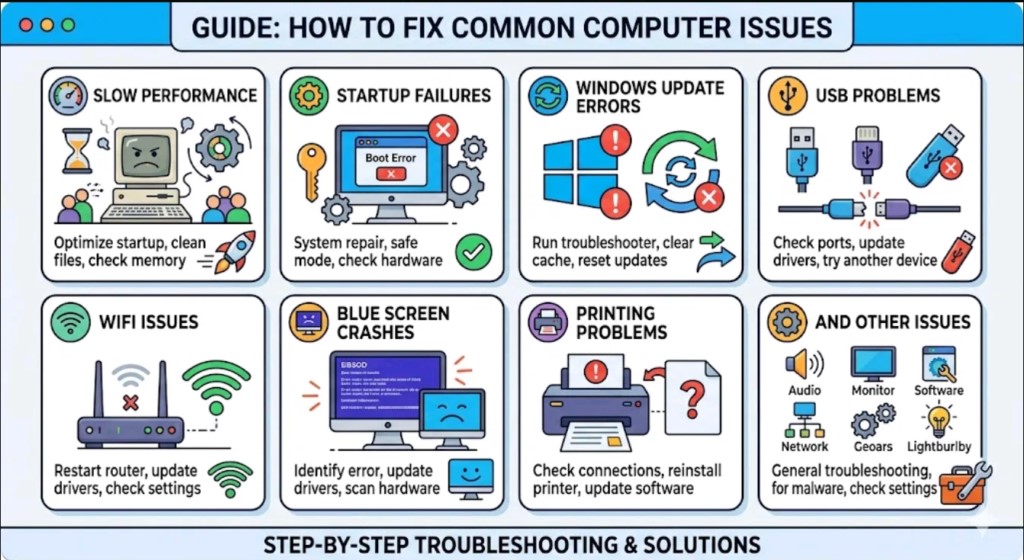
Unlike software errors that produce readable messages, computer hardware problems communicate through physical symptoms: beeps, overheating, failure to POST (Power-On Self-Test), devices not being detected, or peripherals intermittently disconnecting. The diagnostic approach is different from software troubleshooting — you are ruling out physical components, firmware settings, and driver conflicts rather than reading log files.
The four most important questions to ask first
- Is it the device or the port? — Try the USB drive or peripheral in a different port or on a different computer before assuming the device is faulty.
- Is it a BIOS/UEFI setting? — Bootable USB issues and hardware detection problems are frequently caused by BIOS settings such as Secure Boot being enabled or USB boot being disabled.
- Is it a driver or power management setting? — Bluetooth disconnections and USB dropouts are often caused by Windows power-saving settings cutting power to devices, not by hardware failure.
- Has anything changed recently? — A Windows Update, a newly installed application, or a recently connected peripheral is almost always the trigger for hardware problems that appear suddenly on a previously working system.
| SECTION 2 Quick Finder: Identify Your Problem |
Find your exact symptom below and jump directly to the right section.
| Your situation right now | Most likely cause | Go to |
| Want to know what parts to check when buying a PC | Motherboard component knowledge gap | Section 3 — Motherboard Parts |
| PC is running slow or overheating, fan clogged | Dust accumulation inside case or keyboard | Section 4 — Cleaning Your PC |
| PC beeps on startup — won’t boot | Hardware failure indicated by BIOS beep code | Section 5 — Beep Codes |
| Computer makes annoying beep even with volume off | System speaker / Non-Plug and Play Drivers enabled | Section 5 — Beep Codes |
| Need to install Windows or Linux from a USB drive | No bootable USB created yet | Section 6 — Create Bootable USB |
| Bootable USB not recognised by BIOS | Secure Boot on, USB Boot disabled, or USB 2.0 issue | Section 7 — USB Not Recognised |
| Rufus shows Error 006564 — Device in use | Chose MBR instead of GPT partition scheme | Section 8 — Rufus Error 006564 |
| Need to safely remove a USB drive | Quick vs Better Performance removal policy | Section 9 — Safe USB Removal |
| Bluetooth device keeps disconnecting from Windows | Power saving mode cutting power to wireless adapter | Section 10 — Bluetooth Fix |
| Eyes strained after long screen sessions | Blue light exposure from RGB screens | Section 11 — Blue Light Protection |
| Want hidden iPhone iOS 14 features enabled | Privacy, Sound Recognition, Shazam not configured | Section 12 — iPhone Features |
| SECTION 3 12 Important Parts of a Computer Motherboard |
If you are buying a new computer or upgrading an existing one, understanding the 12 important parts of a computer motherboard tells you exactly what to check for performance and scalability. The motherboard is the central circuit board that connects every component in the system — getting the right one determines what CPU, RAM, graphics card, and storage you can use.

The 12 key motherboard components
- CPU Socket (Processor Socket) — the slot that holds the CPU. It varies by pin count and notch design. Always verify compatibility with your chosen processor before purchase.
- Chipset — manages data flow between the processor, memory, and all other peripherals. Different chipset models on different motherboards determine which features are supported.
- DDR3 SDRAM slots — DDR3 (Double Data Rate 3) Synchronous Dynamic RAM slots. Check the speed rating and whether the motherboard vendor supports the specific RAM modules you plan to use.
- PCI-Express x16 (PCIe x16) — the primary graphics card slot. Allows up to 4 GB/s peak bandwidth per direction and up to 8 GB/s concurrent bandwidth. Used for dedicated GPUs.
- PCI-Express x1 — for expansion cards such as sound cards, network cards, and USB expansion cards.
- Legacy PCI (32-bit, 33 MHz) — older expansion slot for backward compatibility with older PCI cards.
- Serial ATA (SATA) — the bus interface connecting hard disk drives, SSDs, and optical drives to the motherboard.
- FC Audio Jacks — I/O ports for connecting speakers or headphones. These are the audio input/output connections on the rear panel.
- USB ports — USB 2.0 High Speed operates at 480 Mbps. USB 3.0 SuperSpeed operates at 4.8 Gbps — roughly 10 times faster than USB 2.0.
- 24-pin ATX EPS Power Supply connector — the main power input from the PSU (Power Supply Unit). A switched-mode power supply converts mains AC to regulated DC for all internal components.
- Flash ROM / BIOS — stores the firmware that initialises hardware at startup and provides the BIOS setup utility. Modern systems use UEFI firmware stored in Flash ROM, replacing the older battery-backed CMOS RAM configuration.
- System Clock Battery (CMOS battery) — a small coin cell battery (typically CR2032) that keeps the real-time clock and BIOS settings alive when the system is powered off.
How to diagnose a failing CPU
Hot CPU Tester Pro is a system stability and diagnostics tool that tests the CPU, chipset, and all parts of the motherboard for errors, faulty components, and bugs using a burn-in test powered by the DefectTrack engine. DefectTrack is a technology developed by 7Byte to diagnose system stability by intentionally stressing all components to their maximum limits — defective components fail under load, revealing themselves before they cause problems in production. It is recommended to run Hot CPU Tester for a minimum of six hours for a comprehensive stability test.
Step-by-step guide:
- → 12 important parts of a computer motherboard — Full component descriptions, CPU diagnostics with Hot CPU Tester Pro
| SECTION 4 How to Clean Your Desktop and Laptop Computer |
Dust is the silent killer of computer hardware. It insulates heat-generating components, reduces airflow through fans and heatsinks, and over time causes thermal throttling, random shutdowns, and component failure. Regular cleaning — every three to six months, or more frequently if the case sits on the floor, if you have pets, or if you smoke — is the single most effective preventive maintenance step for extending the life of a computer.
What you need before you start
Gather these items before opening the case: a standard (flat-tip) or Phillips screwdriver, a can of compressed air (available from computer dealers or office-supply stores), cotton swabs (not cotton balls), rubbing alcohol, soft lint-free cloths or anti-static cloths, and water. Safety glasses are optional but recommended. Always turn the computer off and disconnect it from the power source before beginning any cleaning steps.
Step 1: Inside the case
Open the case using the appropriate screws or hand-turn knobs on the back panel. For laptops, turn the machine upside down on a stable surface, remove the battery, and unscrew the vent panel. Inside, pick out any dust bunnies or debris carefully with tweezers or a cotton swab. Use short bursts of compressed air — holding the nozzle at least four inches away — to blow dust out of components, along the bottom of the case, into the power supply box, and into the fans. Take special care with the delicate fan blades: over-spinning them with excessive air pressure can crack a blade or damage the bearings. Immobilise the fan blades with your fingertip while using the compressed air can.
Step 2: Keyboard
Turn the keyboard upside down and shake gently — most crumbs and dust fall out. Follow with compressed air blown in and around the keys. Dip a cotton swab in rubbing alcohol (damp but not dripping) and run it around the outside of each key and across the tops. Replace swabs when they get dirty. For laptop keyboards, treat the machine as gently as you would a carton of eggs and pay extra care with the touchpad — a damp swab wipes it clean. Do this monthly.
Step 3: Mouse
Disconnect the mouse and rub the top and bottom with a paper towel dipped in rubbing alcohol. If you use an optical mouse, ensure no lint or debris obscures the light-emitting lens on the underside — even a small fibre on the lens causes erratic cursor movement. For a mechanical mouse, remove and wash the ball with water, let it air dry, and clean internal components with rubbing alcohol on a cotton swab.
What to do if you spill liquid
Immediately turn off the computer and disconnect the keyboard. Flip the keyboard over and blot the keys with a paper towel. Blow compressed air between the keys and leave it to air dry overnight. For laptop spills, turn off immediately, remove the external power source, remove the battery, and take it to a repair centre — liquids can penetrate deeply and sit inside a laptop for days. Never attempt to dry a keyboard or laptop in a microwave or oven. Anything other than plain water can cause severe damage.
Step-by-step guide:
- → How to clean your desktop and laptop computer — Full cleaning procedure, spill handling, maintenance schedule
| SECTION 5 Fix a Computer with an Annoying Beep — Beep Codes Explained |
When a computer beeps on startup, the system speaker is communicating a hardware failure through a coded sequence of beeps. Even with the volume turned off in Windows, if your PC has a system speaker it can still emit a loud system beep — because the beep comes from dedicated hardware, not the audio subsystem. Understanding the beep codes tells you exactly which component has failed before Windows even loads.
BIOS beep code reference table
| Beep pattern | Hardware failure indicated | Urgency |
| 1 short beep | DRAM refresh failure | High — RAM issue |
| 2 short beeps | Parity circuit failure | High — RAM/motherboard |
| 3 short beeps | Base 64K RAM failure | High — replace RAM |
| 4 short beeps | System timer failure | High — motherboard |
| 5 short beeps | Process failure | Critical — CPU/motherboard |
| 6 short beeps | Keyboard controller Gate A20 error | Medium — keyboard/motherboard |
| 7 short beeps | Virtual mode exception error | High — CPU fault |
| 8 short beeps | Display memory Read/Write test failure | Medium — GPU/RAM |
| 9 short beeps | ROM BIOS checksum failure | High — corrupted BIOS |
| 10 short beeps | CMOS shutdown Read/Write error | Medium — CMOS battery |
| 11 short beeps | Cache memory error | High — CPU cache/motherboard |
| 1 long, 3 short | Conventional/Extended memory failure | High — RAM |
| 1 long, 8 short | Display/Retrace test failed | Medium — GPU/monitor |
How to disable the annoying system beep in Windows
If your PC emits an annoying beep that is not related to a hardware failure — for example, a beep every time you press a wrong key — you can disable the system speaker driver through Device Manager without affecting hardware diagnostic beeps at POST.
- Right-click on My Computer (or This PC) and select Properties.
- On the Hardware tab, click Device Manager.
- On the View menu, select Show hidden devices.
- Under Non-Plug and Play Drivers, right-click Beep and click Disable.
- Click Yes when asked to confirm, then click No when asked to reboot.
- Right-click Beep again, click Properties, and on the Driver tab set the Startup type to Disabled.
- Click Stop, then OK, then No when asked to reboot.
| 💡 Hardware beeps vs software beeps Beeps that occur before the Windows loading screen are hardware diagnostic beeps from the BIOS — these cannot be disabled through Device Manager and indicate real hardware failures. The Device Manager fix only disables the software beep that occurs within Windows after startup. |
Step-by-step guide:
- → How to fix a computer with an annoying beep — Beep code table, Device Manager disable steps
| SECTION 6 How to Create a Bootable USB Drive (Windows & Linux) |
Creating a bootable USB flash drive is the standard method for installing Windows or Linux without using an optical drive — essential for netbooks and most modern laptops that no longer include a DVD drive. Windows can also be downloaded as an official ISO file directly from Microsoft and transferred to a USB drive using a free tool. The flash drive must be 4 GB or larger to hold all installation files.
Method 1: YUMI Multiboot Installer (Windows and Linux)
YUMI (Your Universal Multiboot Installer) is a MultiBoot USB Creation Tool that creates a single custom bootable USB flash drive containing multiple Live Linux distributions, Windows installers, antivirus tools, system diagnostic utilities, and troubleshooting software — all on the same drive. It is the recommended tool when you need a versatile USB device for IT work.
- First, verify your USB flash device is genuine and not a fake capacity device using the fake USB flash drive detection tool.
- Download YUMI from pendrivelinux.com and run the installer.
- Follow the on-screen instructions to select your USB drive and add your first ISO or distribution.
- Run the tool again to add more ISO files or distributions to the same drive.
- Restart your PC, change the BIOS boot order to boot from the USB device, and select a distribution from the list.
Note: if a Multiboot ISO was previously used on the drive, format it and start fresh before adding new content.
Method 2: Windows 7 USB/DVD Download Tool (Windows only)
For a single Windows installation drive, the Windows 7 USB/DVD Download Tool (available from Microsoft) takes a Windows ISO file and turns it into a bootable flash drive. The ISO file contains all Windows installation files combined into a single uncompressed file. Once copied to the USB drive, you can install Windows directly by inserting the drive and changing the BIOS boot order to USB port. Run Setup.exe from the root folder of the drive if Windows does not autorun.
| 💡 Check your USB drive before creating a bootable disk Always verify the USB flash drive is genuine using H2testw or the fake USB detection tool before writing an ISO to it. A counterfeit USB drive that reports 64 GB but physically stores 8 GB will silently corrupt the bootable image, causing installation failures that are very difficult to diagnose. |
Step-by-step guide:
- → How to create a bootable USB device — YUMI multiboot, Windows ISO tool, BIOS boot order setup
| SECTION 7 USB Stick Not Recognised as a Bootable Device — BIOS Fix |
A USB stick that boots perfectly on one laptop but is completely ignored by the BIOS on another is a surprisingly common problem. The BIOS acts as if nothing is plugged in — no boot menu entry appears, no prompt to boot from USB, nothing. This was the exact experience on an HP 240 G8 laptop where a bootable USB 2.0 drive that worked on every Dell laptop was simply not detected.
Step 1: Check BIOS settings
Enter the BIOS by pressing F10 during startup (or the manufacturer-specific key — Del, F2, F12 depending on the machine). Check and configure the following:
- Enable USB Boot — confirm USB boot is enabled in the boot options.
- Disable Secure Boot — Secure Boot can prevent unsigned boot media from loading. Disable it for the duration of the installation.
- Set UEFI Boot Order — press F5 and F6 to toggle the boot order. Move USB Flash Drive / USB Hard Disk to the first position.
- Press F10 to save settings, then shut down the computer.
Plug in the USB stick and power on. Press F9 to access the boot menu and select the USB device.
Step 2: Try a USB 3.0 drive instead of USB 2.0
If the BIOS settings are correct but the USB stick still does not appear in the boot menu, the issue may be the USB version. USB 2.0 drives operate in half-duplex mode at a maximum speed of 480 Mbps. USB 3.0 drives support full-duplex communication at a maximum data transfer rate of 5 Gbps. On the HP 240 G8, a USB 2.0 bootable drive was completely undetected while a USB 3.0 drive with an identical bootable image was recognised immediately. If you have been trying with a USB 2.0 stick, recreate the bootable drive on a USB 3.0 stick.
Step 3: Install Intel Rapid Storage Technology Driver (HP specific)
On the HP 240 G8 specifically, the storage device may not be recognised by the Windows installer because the Intel Rapid Storage Technology (RST) driver is not included in the standard Windows ISO. Download the Intel RST driver from the HP support site and either slipstream it into the installation or load it manually during the Windows setup “Where do you want to install Windows?” step.
MBR vs GPT for bootable USB
Legacy BIOS systems require MBR (Master Boot Record) partition scheme. UEFI systems work with GPT (GUID Partition Table). If you are unsure which to use, GPT with UEFI is the correct choice for any computer purchased in the last eight years. Legacy BIOS with MBR is only needed for very old hardware. Choosing the wrong one is the most common reason a USB drive boots on one machine but not another.
Step-by-step guide:
- → USB stick not recognised as a bootable device — fix it easily — BIOS settings, USB 2.0 vs 3.0, HP 240 G8 Intel RST fix
| SECTION 8 Fix Rufus Error 006564: The Device is in Use by Another Process |
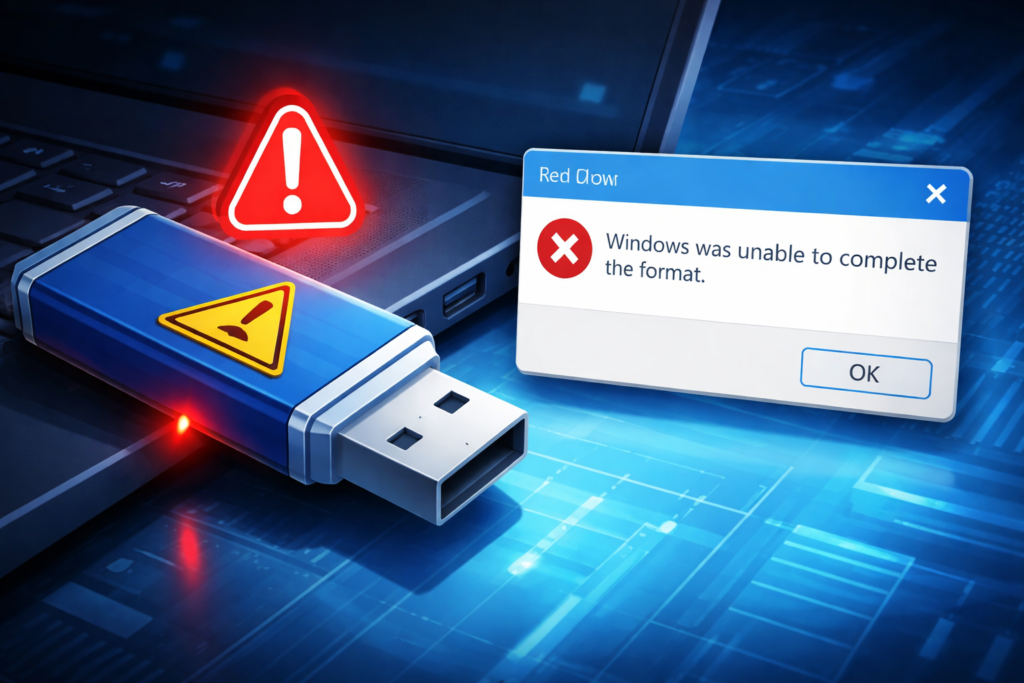
Rufus is one of the most reliable and widely used tools for creating bootable USB drives. When it throws Error 006564 “The Device is in Use by Another Process,” it means Rufus cannot gain exclusive access to the USB drive — another process or application is currently using the device, or the partition scheme selected is incompatible.
The most common cause: MBR selected instead of GPT
When creating a bootable disk for modern Windows, Ubuntu, or Linux distributions, the new versions all use GUID Partition Table (GPT). If you select Master Boot Record (MBR) as the partition scheme in Rufus while your system uses UEFI firmware, you will encounter Error 006564. The fix is simple: change the partition scheme from MBR to GPT in the Rufus settings before starting the write process.
Other causes and fixes
Background processes using the USB drive
Antivirus software, backup utilities, or Windows services may have the USB drive open. Open Task Manager, end any processes associated with security or backup tools, then retry Rufus. If the problem persists, eject and reinsert the USB drive to force Windows to release all file handles.
Run Rufus as Administrator
Right-click the Rufus executable file and select Run as administrator. Click Yes if prompted by User Account Control. Running without administrator privileges can prevent Rufus from obtaining exclusive device access.
Update Rufus and USB drivers
Using an outdated version of Rufus can cause conflicts. Download the latest version from rufus.ie. Similarly, outdated USB drivers on the computer can cause compatibility issues — update them through Device Manager or the PC manufacturer’s website.
MBR vs GPT: key differences at a glance
| Feature | MBR | GPT |
| Maximum partitions | 4 primary (or 3 + 1 extended) | Up to 128 partitions |
| Maximum disk size | 2 TB | 9.4 zettabytes |
| Boot compatibility | Legacy BIOS and UEFI (via CSM) | UEFI natively; legacy via CSM |
| Data integrity | Single partition table copy | Redundant backup at end of disk |
| Use for modern USB | Only for very old hardware | Recommended — all modern systems |
Step-by-step guide:
- → Fix Rufus error — the device is in use by another process (Error 006564) — GPT fix, run as admin, background process steps
| SECTION 9 How to Safely Remove a USB Drive in Windows |
A very common practice — and a common cause of USB drive corruption and data loss — is simply unplugging a USB drive without using the Safely Remove Hardware and Eject Media option. Windows 10 has a specific removal policy for USB drives that determines whether this matters, and it is worth understanding which policy your machine is using.
Windows 10 USB removal policies
Windows 10 offers two removal policies for each USB drive, set per device in Device Manager:
- Quick removal (default) — disables write caching on the device and in Windows. You can disconnect the device safely at any time without using the Safely Remove Hardware notification icon. This is the safest option for day-to-day use.
- Better Performance — enables write caching in Windows for faster USB transfers. However, you must use the Safely Remove Hardware notification icon before disconnecting, or risk corrupting the drive and losing data.
How to check and change the removal policy
- Type computer management in the search bar and open it.
- Click Device Manager in the left panel.
- Expand Disk drives and locate your USB drive.
- Right-click it, select Properties, and click the Policies tab.
- Select Quick removal or Better Performance as needed, then click OK.
Best practices for USB drives
- Buy drives with an LED indicator that blinks during writes — this shows you when it is safe to unplug.
- Scan the drive with an antivirus tool before loading any new data — USB pen drives are a common malware vector.
- Format the drive before loading new data to ensure a clean file system.
- If using Better Performance policy, always use Safely Remove Hardware before unplugging.
- Use Microsoft Defender ATP device control policies to manage USB device access in corporate environments.
Step-by-step guide:
- → How to safely remove a USB drive in Windows — Quick vs Better Performance policy, Device Manager steps
| SECTION 10 Fix Frequent Bluetooth Device Disconnections |
Windows 8.1 has a well-documented bug causing Bluetooth devices — including mobile phones, keyboards, and mice — to frequently disconnect. The symptom is that Bluetooth peripherals connect on startup but then drop intermittently, requiring a reboot or log-off to reconnect. Microsoft identified the cause and published a workaround.
The cause: power saving mode on the wireless adapter
The problem is caused by two compounding factors: insufficient power being supplied to Bluetooth devices, and the Power Management setting on the wireless network adapter being set to allow Windows to turn off the device to save power. When Windows cuts power to the wireless adapter to save energy, it also drops connected Bluetooth devices — without warning and without automatically reconnecting them.
The fix: disable power saving for the wireless adapter
- Click Start, then Run. Type devmgmt.msc and press Enter (or OK) to open Device Manager.
- Scroll down and expand Network adapters.
- Right-click the wireless adapter and select Properties.
- Click the Power Management tab.
- Untick “Allow the computer to turn off this device to save power.”
- Click OK.
- Reboot the computer.
After restarting, Bluetooth devices should maintain a stable connection without dropping. This fix applies to all brands of laptops running Windows 8.1.
Upgrading to Windows 8.1 Pro Pack for a permanent fix
Microsoft also released the Windows 8.1 Pro Pack which permanently addresses the Bluetooth disconnection problem across all laptop brands, adds OS stability improvements, enables the ability to encrypt sensitive data, adds touch screen support, and improves compatibility with all hardware drivers.
| 💡 This fix also applies to USB peripheral dropouts The same Power Management setting — “Allow the computer to turn off this device to save power” — can cause intermittent disconnections on USB hubs and USB peripherals. If a USB keyboard, mouse, or other USB device drops randomly, check the power management tab on the USB Root Hub entries in Device Manager and untick the same option. |
Step-by-step guide:
- → Frequent disconnection of Bluetooth device with Windows 8.1 — devmgmt.msc fix, Power Management tab, all brands
| SECTION 11 How to Protect Your Eyes from Harmful Blue Light Screens |
Digital devices emit colours through a combination of red, green, and blue (RGB). Blue light is notably pervasive because of its higher energy wavelength — and prolonged exposure has real consequences: it disrupts the circadian rhythm causing sleep disturbances and fatigue, may damage retinal cells heightening the risk of macular degeneration, and is of particular concern for children who absorb blue light more readily than adults.
Built-in solutions: Night Light (Windows 10) and Night Shift (macOS)
Windows 10 includes a built-in blue light filter called Night Light. To enable it: go to Settings → System → Display and toggle Night Light from Off to On. You can also schedule it to activate automatically at sunset. macOS includes the equivalent feature called Night Shift: go to System Preferences → Displays → Night Shift and configure it to align with natural sunrise and sunset times. Both tools shift the screen’s colour temperature toward warmer tones, reducing the proportion of blue light emitted.
Third-party tools: Redshift and IRIS Eye Protector
Redshift for Windows 10 modifies the monitor’s colour temperature to suit your environment, acting as an effective monitor blue light filter. It is especially valuable for working at night. When searching for Redshift, be careful to download the eye care application rather than the similarly-named video game. IRIS Eye Protector is another well-regarded blue light filter application that provides more granular control over colour temperature and brightness schedules.
Habits and accessories
- Use a break reminder app to ensure you pause and look away from the screen regularly — this reduces cumulative eye fatigue regardless of blue light filtering.
- Blue light blocking glasses provide a physical layer of protection when screen time is unavoidable for extended periods.
- A blue light screen protector film applied to your monitor or laptop screen provides passive protection without requiring any software.
- For AI tool users: learning prompt engineering patterns helps you get answers faster, reducing total screen time per task.
Step-by-step guide:
- → How to protect eyes from harmful blue light screens — Night Light, Night Shift, Redshift, IRIS Eye Protector
- → Microsoft Support: Turn on Night Light in Windows — official guide
| SECTION 12 Cool iPhone iOS 14 Features You Should Enable |
Apple has continuously evolved new, advanced, and robust features in every iPhone release. iOS 14 introduced several important improvements in privacy, security, and usability that most users do not know about and have not enabled. Here are the most important ones to turn on.
Camera and microphone usage indicator
iOS 14 shows a small orange or green dot in the status bar at the top-right of the iPhone screen whenever an app uses your camera or microphone. A green dot means an app is actively capturing video or audio. An orange dot means an app is using the camera or microphone in the background. To find out which app triggered it, swipe down to open the Control Centre — the app name is shown there. This is a critical privacy feature for identifying apps that listen or record without obvious reason.
Private WiFi Address
When your iPhone connects to a WiFi network, iOS 14 can now enable a private MAC address to prevent tracking across different WiFi networks. This is particularly important when connecting to open public WiFi networks where tracking is common. To enable: go to Settings → WiFi → tap the network name → toggle Private Address to On (green).
Sound Recognition
Sound Recognition allows the iPhone to continuously listen for specific environmental sounds — car horns, running water, doorbells, a dog barking, a baby crying, fire alarms, shouting, and other alerts — and send a notification when detected. This is a powerful accessibility and safety feature. To enable: go to Settings → Accessibility → Sound Recognition. Note: when Sound Recognition is active, the iPhone will not respond to “Hey Siri” commands.
Shazam Music Recognition in Control Centre
iOS 14.2 added native Shazam integration to the Control Centre. To set it up: go to Settings → Control Centre, tap the “+” next to Music Recognition to add the Shazam icon. Now, with a single tap from any screen, Shazam identifies any music playing and displays the song details. The iPhone must be on iOS 14.2 or above for this feature. Check by going to Settings → General → Software Update.
Pin up to 9 contacts in Messages
iOS 14 allows you to pin up to 9 contacts in the Messages app, displaying their profile photos in circles at the top of the screen. The pinned contact interface shows typing indicators and displays notification badges on the icon when a new message arrives — making your most important conversations immediately visible without scrolling.
Step-by-step guide:
- → Revealing cool key features of iPhone you must know — iOS 14 privacy features, Sound Recognition, Shazam, Private WiFi Address
| Frequently Asked Questions |
Why is my bootable USB not detected by BIOS?
The most common causes are Secure Boot being enabled, USB Boot being disabled in BIOS, or using a USB 2.0 drive on a system that requires USB 3.0. Enter BIOS (F10), enable USB Boot, disable Secure Boot, and set the UEFI boot order to prioritise the USB drive
What does the computer beep code mean?
BIOS beep codes indicate hardware failures before Windows loads: 1 short beep = DRAM refresh failure, 3 short = Base 64K RAM failure, 9 short = ROM BIOS checksum failure. Count the beeps and match them to the beep code table to identify the failing component.
How do I fix Rufus Error 006564?
Change the partition scheme from MBR to GPT in Rufus before writing the ISO. Modern Windows, Ubuntu, and Linux distributions require GPT for UEFI systems. Also try running Rufus as Administrator and closing any background processes that may have the USB drive open.
Why does my Bluetooth device keep disconnecting?
The most common cause on Windows 8.1 is power-saving mode cutting power to the wireless adapter. Fix it in Device Manager (devmgmt.msc): right-click the wireless adapter → Properties → Power Management tab → untick “Allow the computer to turn off this device to save power.”
Do I need to safely remove a USB drive in Windows 10?
Not always. If Quick removal policy is set (the Windows 10 default), you can unplug safely at any time. If Better Performance policy is set, you must use Safely Remove Hardware before unplugging or risk data corruption. Check the policy in Device Manager → Disk drives → Properties.
What is the difference between MBR and GPT for a bootable USB?
MBR is for legacy BIOS systems and supports disks up to 2 TB. GPT is for UEFI systems, supports up to 9.4 zettabytes, and up to 128 partitions. For any modern PC purchased in the last eight years, always choose GPT when creating a bootable USB in Rufus.
How often should I clean my computer?
Clean the inside of the case every three months if it sits on the floor, if you have pets, or if you smoke. Otherwise every six to eight months is sufficient. Clean the keyboard monthly. Regular cleaning prevents overheating, extends component life, and maintains performance.
Conclusion
Computer hardware problems and USB errors share a common characteristic: they are almost always solvable once you know what the symptom is telling you. A sequence of BIOS beep codes maps directly to a specific failed component. A Rufus Error 006564 resolves the moment you switch from MBR to GPT. A USB drive that is invisible in the BIOS boot menu is often fixed by trying a USB 3.0 stick instead of USB 2.0. Bluetooth that keeps dropping is a Power Management setting, not a hardware fault.
Use the Quick Finder table at the start of this guide to identify your exact scenario and jump to the right section. Each linked guide contains the specific steps, commands, and settings required — no guesswork. And when the hardware is working well, the maintenance and wellness guides here — cleaning your PC, protecting your eyes with Night Light or Night Shift, and enabling the iPhone privacy features you did not know existed — help you get the most from your devices every day.
| 🔗 More topic clusters on this site Windows OS Troubleshooting & Performance | Data Recovery & Storage Management | Networking, VPN & Remote Access | Security & Password Management | Microsoft Office & Productivity Apps |