
You plug in your USB drive, try to copy a file, and get hit with this:
“The disk is write protected. Remove the write-protection or use another disk.”
You search for a fix Write-Protected USB Drive Without Formatting. Every guide you find says the same thing: try DiskPart, try the registry… and if none of that works, just format the usb drive. But your files are on that drive. You can’t format it.
This guide is different. All 6 methods below fix write protection without formatting and without deleting a single file. We tested every step on Windows 11 24H2 using Kingston DataTraveler and SanDisk Cruzer drives in April 2026.
Quick Diagnosis: Why Is Your USB Write-Protected?
Before jumping to fixes, spend 30 seconds matching your situation to the right method. This saves you from trying things that won’t work.
| What you’re seeing | Most likely cause | Go to |
|---|---|---|
| Small slider switch on the side of the drive | Physical write-protect switch is on | Check #1 below |
| Error on all USB drives, not just one | Windows Group Policy or registry flag | Method 2 or 3 |
| Error on one specific drive only | DiskPart attribute or file system error | Method 1 or 4 |
| Drive is locked or asking for a password | BitLocker encryption is active | Unlock via BitLocker first |
| Drive shows 0 bytes or appears as RAW | Firmware-level lock (drive may be failing) | See the warning section at the bottom |
Check First: Does Your USB Have a Physical Lock Switch?
Before doing anything else, look at the side of your USB drive. Some models — particularly certain Kingston DataTraveler SE9 and SanDisk Cruzer variants — have a tiny physical slider switch labelled LOCK.
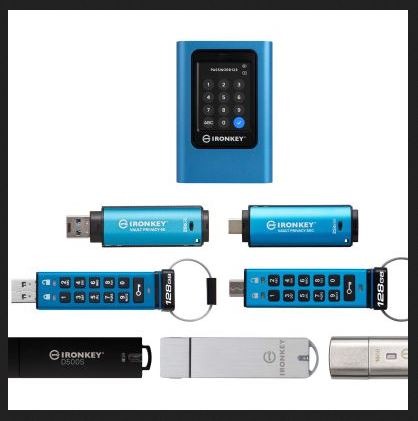
If the switch is slid towards the LOCK end:
- Remove the USB from your computer.
- Slide the switch away from LOCK (towards the drive’s connector end).
- Re-insert and test.
That’s it. This fixes the issue immediately for drives that have the switch. If your drive has no switch, or sliding it doesn’t help, move to Method 1.
Method 1: Remove Write Protection Using DiskPart (Works in 90% of Cases)
DiskPart is a built-in Windows command-line tool. This method clears the read-only attribute set on the drive and works on Windows 7, 8, 10, and 11 — all without touching your files.
⚠️ Important before you start: In Step 4, you will select a disk by its number. Triple-check you have the correct number. Selecting your main system disk (usually Disk 0) and clearing its attributes can cause problems. Your USB drive is almost always Disk 1 or higher.
- Press Win + R, type
cmd, then right-click Command Prompt and choose Run as administrator. - Type
diskpartand press Enter. A new window will open. - Type
list diskand press Enter. You will see all disks connected to your PC. Identify your USB drive by its size (e.g., a 32GB drive will show approximately 29 GB). - Type
select disk [number]— replace [number] with your USB’s disk number. For example:select disk 2 - Type
attributes disk clear readonlyand press Enter. - Type
exitto close DiskPart. - Safely remove and re-insert your USB drive. Test by trying to create or copy a file.
Expected result: You should see “Disk attributes cleared successfully.” If you see an error, move to Method 2 — the write protection is being applied by Windows policy rather than a disk attribute.
Method 2: Fix Write Protection via Registry (StorageDevicePolicies)
If DiskPart didn’t work, Windows may be enforcing write protection through a registry key. This is common on shared PCs, office computers, or if a previous user or software enabled it. This method works on Windows 10 and Windows 11.
⚠️ Registry editing warning: Be careful in Registry Editor. Only change the specific value described below. Do not delete or rename anything else.
- Press Win + R, type
regedit, and press Enter. Click Yes on the UAC prompt. - In the address bar at the top, paste this path and press Enter:
HKEY_LOCAL_MACHINE\SYSTEM\CurrentControlSet\Control\StorageDevicePolicies - In the right panel, double-click the WriteProtect entry.
- Change the Value data from 1 to 0.
- Click OK and close Registry Editor.
- Restart your computer, then re-insert your USB and test.
If the StorageDevicePolicies key does not exist: This is not the cause of your issue. Close Registry Editor and move to Method 3. Do not create the key manually.
Method 3: Fix Using Group Policy Editor (Windows 10/11 Pro and Enterprise)
On Pro and Enterprise editions of Windows, an administrator-level policy can block all USB write access across the system. This is common on company or school-managed laptops. Here is how to check and disable it.
Note: Windows Home does not include Group Policy Editor. If you are on Windows Home, skip to Method 4.
- Press Win + R, type
gpedit.msc, and press Enter. - In the left panel, navigate to:
Computer Configuration > Administrative Templates > System > Removable Storage Access - In the right panel, look for “Removable Disks: Deny write access”.
- Double-click it. If it is set to Enabled, change it to Not Configured.
- Click Apply then OK.
- Restart your computer and test your USB.
💡 Tip: If you are on a company-managed laptop, your IT administrator may have locked this policy and you may not be able to change it. Contact your IT support team in that case.
Method 4: Use CHKDSK to Fix File System Errors
Sometimes write protection is not caused by a policy or a registry setting — it is caused by a corrupted file system on the drive itself. Windows puts the drive into read-only mode to prevent further data corruption. CHKDSK scans and repairs these errors without deleting your files.
- Open Command Prompt as administrator (Win + R → cmd → right-click → Run as administrator).
- Find out what drive letter Windows assigned to your USB. Open File Explorer and check under “This PC”. Note the letter (e.g., E:).
- Type the following command and press Enter — replace E with your actual drive letter:
chkdsk E: /f - Wait for the scan to complete. On a 32GB or 64GB drive this typically takes 5–15 minutes.
- Once finished, safely eject and re-insert the USB. Test whether you can write to it.
What to do if CHKDSK reports bad sectors: Bad sectors mean the drive’s physical memory cells are degrading. Copy all your important files to another location immediately. The drive may fail soon and should be replaced.
Method 5: Fix Write-Protected USB on Mac (macOS)
Every other guide on this topic is Windows-only. Here is how to fix write-protected USB drives on macOS using built-in tools — no downloads needed.
Step 1: Use First Aid in Disk Utility
- Open Disk Utility (Applications > Utilities > Disk Utility, or search with Spotlight).
- In the left panel, select your USB drive.
- Click the First Aid button at the top.
- Click Run and let it complete.
- Eject and re-insert the drive and test.
Step 2: Check Permissions via Terminal (if First Aid doesn’t fix it)
- Open Terminal (Applications > Utilities > Terminal).
- Type
diskutil info /Volumes/[YourDriveName]— replace [YourDriveName] with the name of your USB as it appears on the desktop. - Look for the line that says Read-Only Media or Read-Only Volume.
- If Read-Only Volume is Yes but Read-Only Media is No, run:
diskutil unmount /Volumes/[YourDriveName]
thendiskutil mount /dev/disk[n](get the disk identifier from the diskutil info output)
If Read-Only Media is also Yes, the drive’s hardware or firmware is enforcing the write protection. See the warning section below.
When Nothing Works: The Firmware Lock (What No One Tells You)
Here is something the other guides don’t mention. If you have tried every method above and the drive is still write-protected, the cause may not be a software setting at all. It may be a firmware-level write lock.
USB flash drives have a built-in controller chip that monitors the health of the NAND flash memory (the storage cells). When those cells start failing — after years of heavy use, extreme heat, or physical damage — the controller automatically switches the drive to read-only mode to prevent further data corruption.
Signs that this is happening to your drive:
- DiskPart, registry fixes, and CHKDSK all fail
- The drive shows 0 bytes or appears as RAW in Disk Management
- The drive is several years old or has been used heavily
- The write protection appeared suddenly with no obvious cause
No software tool can override a firmware-level write lock.
This type of write protection is permanent. The drive is protecting you from total data loss by going read-only. Your priority now is to copy all accessible files off the drive using a data recovery tool, then replace the drive.
Free tools to recover files from a dying drive:
- Recuva (Windows, free) — good for recovering deleted or inaccessible files
- PhotoRec (Windows, Mac, Linux, free) — recovers photos, documents, and videos even from badly corrupted drives
Last Resort: How to Format a Write-Protected USB (After Recovering Files)
If all 5 methods above failed and the firmware lock warning doesn’t apply to your situation, formatting may be the only remaining option. Only do this after you have recovered your files.
- Use Recuva or PhotoRec to copy all accessible files to a different drive first.
- Press Win + X and open Disk Management.
- Right-click your USB drive and select Format.
- Choose FAT32 for drives 32GB and under, or exFAT for larger drives.
- Uncheck “Quick Format” for a thorough format that marks bad sectors.
- Click OK and wait for the process to complete.
Frequently Asked Questions
Can I remove write protection from USB without losing data?
Yes — Methods 1 through 5 in this guide all preserve your files. Only the last resort formatting step deletes data, and even then we recommend recovering files first with Recuva or PhotoRec before proceeding.
Why did my USB suddenly become write-protected?
The five most common causes are: (1) a physical lock switch was accidentally toggled, (2) a Windows registry or Group Policy setting was changed by software or another user, (3) the drive’s file system became corrupted after an unsafe removal, (4) a virus infection applied write protection to prevent removal, or (5) the drive’s internal controller activated a firmware-level lock due to memory wear.
Does write protection mean the USB is broken?
Not necessarily. In most cases it is a software-level flag that can be cleared in minutes using DiskPart or the registry. However, if all software fixes fail and the drive is old, the firmware lock scenario described above may mean the drive’s storage cells are degrading and it is nearing end of life.
My USB is write-protected and infected with a virus — what do I do?
Run a full antivirus scan first (Windows Defender is fine). Some malware applies write protection to prevent you from deleting infected files. Clearing the virus often removes the write protection automatically. If write protection persists after the scan, follow Methods 1–4 above.
DiskPart says “No writable disk selected” — what does that mean?
This usually means you used the select disk command on a virtual or offline disk rather than your USB. Re-run list disk, check the disk number carefully based on size, and reselect. Make sure your USB is properly connected before running DiskPart.
| 🔗 More topic clusters on this site Windows OS Troubleshooting & Performance | Data Recovery & Storage Management | Networking, VPN & Remote Access | Security & Password Management | Microsoft Office & Productivity Apps |