A Complete Step-by-Step Guide for Everyday Users (2026 Edition)
Is your Windows 11 computer acting up? Running slowly, crashing, refusing to update — or just behaving strangely? You are not alone. Windows 11 is used by hundreds of millions of people worldwide, and problems are a normal part of using any computer.
The good news: most Windows 11 problems can be fixed at home, without calling a technician, spending money, or downloading anything risky. All you need is this guide and a little patience.
This guide is written for everyday users — no tech jargon, no complicated commands, no confusing steps. If you can click a mouse, you can follow this guide.
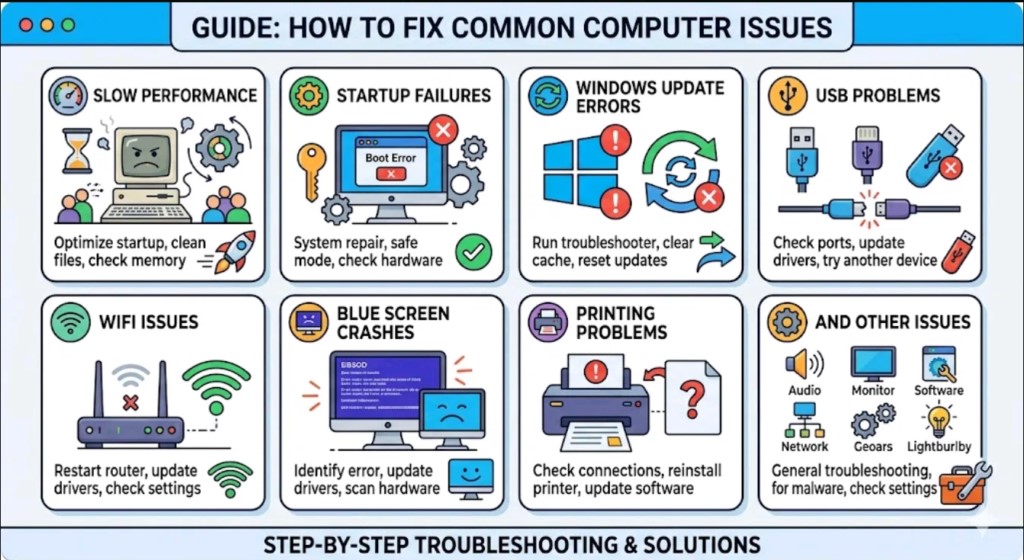
In this guide you will learn how to fix: slow performance, startup failures, Windows Update errors, USB problems, Wi-Fi issues, blue screen crashes, printing problems, and much more — all explained in plain English.
What’s In This Guide
#
Section
Common Problem It Fixes
1
How to Diagnose Any Windows Problem
Don’t know where to start?
2
Windows Won’t Start or Boot
Black screen, stuck loading, won’t turn on
3
Windows Running Slowly
Slow PC, freezing, lagging
4
Windows Update Problems
Updates failing, stuck, or crashing
5
USB and External Device Problems
USB not recognised, won’t format
6
Wi-Fi and Internet Problems
No internet, dropping connection
7
Blue Screen of Death (BSOD)
Random crashes with error codes
8
Windows 10 vs Windows 11
Should you upgrade? How to do it safely
9
Printing Problems
Printer not working, AirPrint issues
10
Outlook and Office Problems
Calendar errors, app freezing
11
When Nothing Else Works
System Restore and full reset options
12
Frequently Asked Questions
Quick answers to common questions
1. How to Diagnose Any Windows 11 Problem
Before fixing anything, it helps to understand what kind of problem you have. Windows 11 has built-in tools that can tell you exactly what is wrong — and most people never know they exist.
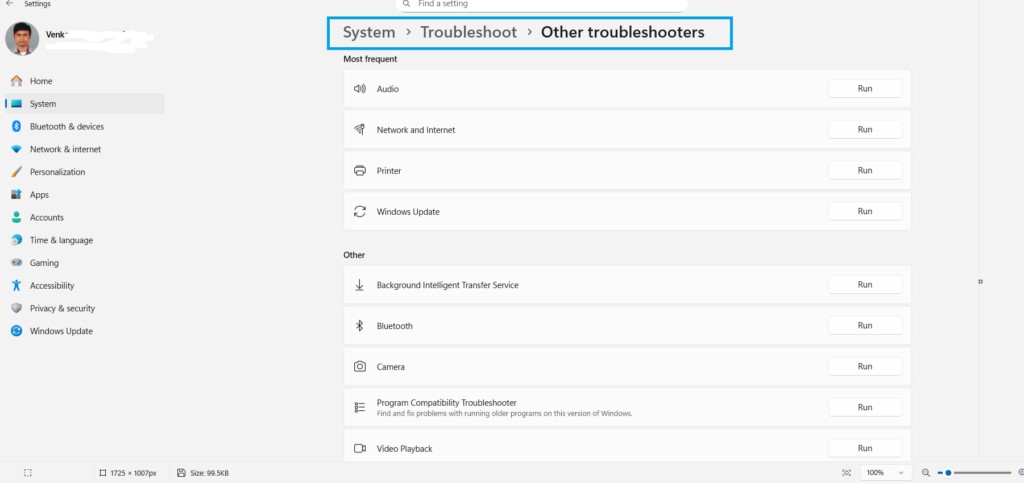
Step 1: Use Windows Troubleshooter
Windows 11 has a built-in troubleshooter that automatically detects and fixes many common problems. Here is how to use it:
Click the Start button (the Windows logo at the bottom of your screen)
Type Settings and press Enter
Click System, then scroll down and click Troubleshoot
Click Other troubleshooters
Find the problem that matches yours (Internet, Printer, Windows Update, etc.) and click Run
Pro Tip: Run the troubleshooter FIRST before trying anything else. It fixes around 40% of common problems automatically — for free, in under 2 minutes.
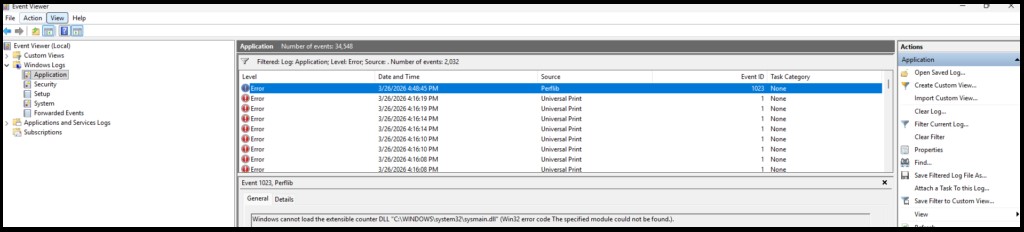
Step 2: Check the Event Viewer for Error Messages
If the troubleshooter did not help, the Event Viewer shows a detailed log of everything that has gone wrong on your computer.
Press the Windows key + R on your keyboard at the same time
Type eventvwr and press Enter
Click on Windows Logs, then click Application or System
Look for red Error entries — these point to the problem
What to do with the error: Copy the exact error message and search for it on Google. Add the word ‘fix’ at the end. For example: ‘Kernel-Power Event 41 fix’. You will almost always find a simple solution.
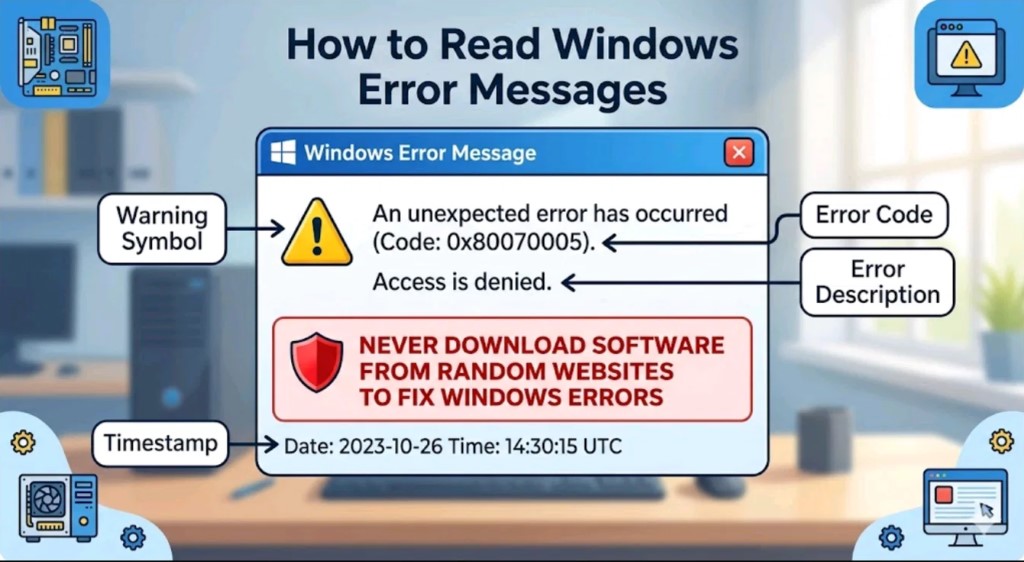
Step 3: How to Read Windows Error Messages
Windows error messages look scary but they follow a simple pattern. Here is how to understand them:
Error Code — a number like 0x80070057. Search this code on Google to find the exact fix.
Description — usually tells you what failed (e.g. ‘disk’, ‘network’, ‘memory’).
Time Stamp — tells you when it happened. Useful for spotting patterns.
Important: Never download software from random websites to ‘fix’ Windows errors. Stick to Microsoft’s official support site or trusted guides like this one.
2. Windows Won’t Start or Boot
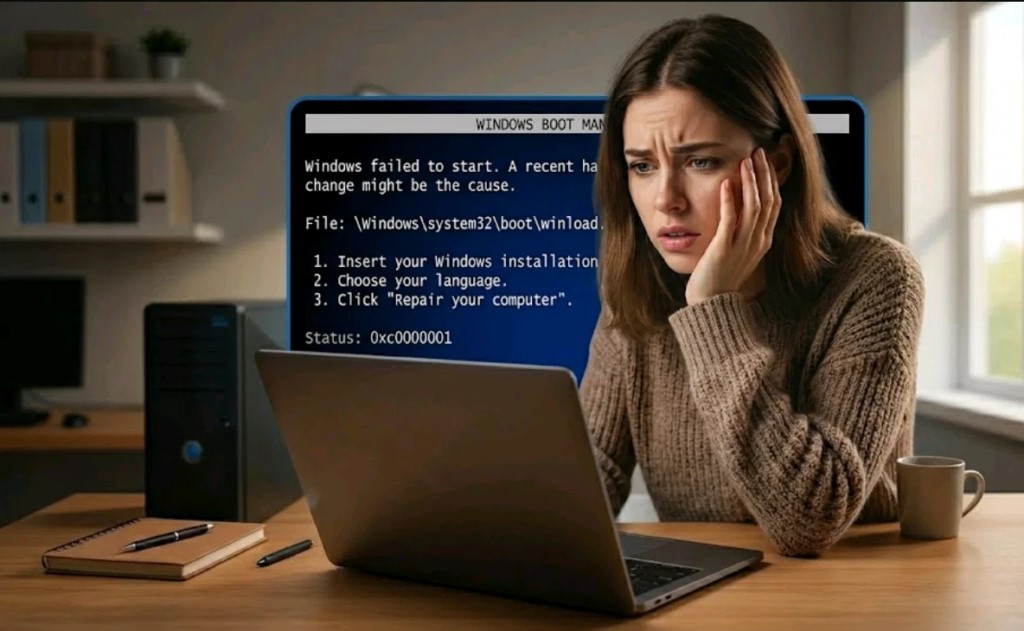
Few things are more frightening than turning on your computer and seeing nothing but a black screen — or watching it get stuck in a loop. Here are the most common startup problems and how to fix them.
Fix: Windows Stuck on Loading Screen
Hold down the power button for 10 seconds to force the computer off
Press the power button again to turn it back on
Repeat this 2-3 times — Windows will automatically open the Recovery screen
Click Troubleshoot, then Advanced options, then Startup Repair
Let Windows fix itself — this usually takes 5 to 15 minutes
Did it work? Startup Repair fixes the most common boot problems automatically. If it says it couldn’t fix it, move to the System Restore method in Section 11.
Warning: If none of these steps work, do not keep trying random fixes. Move to Section 11 for the System Restore and Reset options — these are safe and will not delete your files if done correctly.
3. Windows 11 Running Slowly — How to Speed It Up
A slow Windows 11 computer is one of the most common complaints we hear. The good news is that in most cases, you can dramatically speed up your PC without spending a penny.
Quick Fix: Restart Your Computer
This sounds too simple but it genuinely works. Many people leave their computer on for weeks or even months. Restarting clears out temporary files and frees up memory. If your PC is slow, restart it first — before doing anything else.
Fix: Disable Startup Programs
Many programs automatically start running when you turn on your computer, even if you never use them. This is one of the biggest causes of a slow startup.
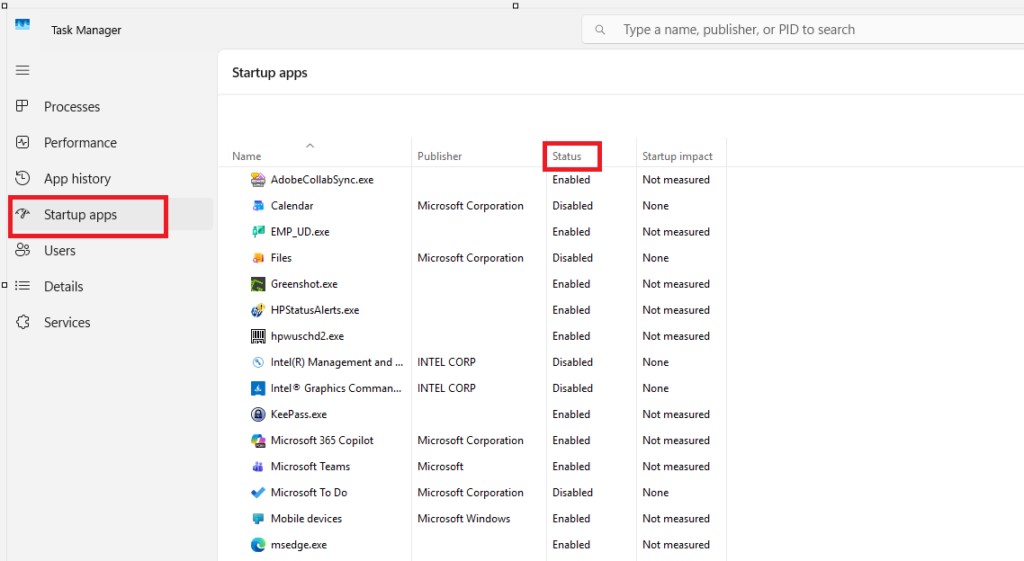
Right-click the Start button and click Task Manager
Click the Startup apps tab at the top
Look at the Status column — anything that says Enabled is running at startup
Right-click any program you do not need at startup and click Disable
Safe to disable: Music apps, messaging apps, creative software, manufacturer update tools. Do NOT disable anything that says Windows, Microsoft, or Security.
Fix: Free Up Disk Space with Storage Sense
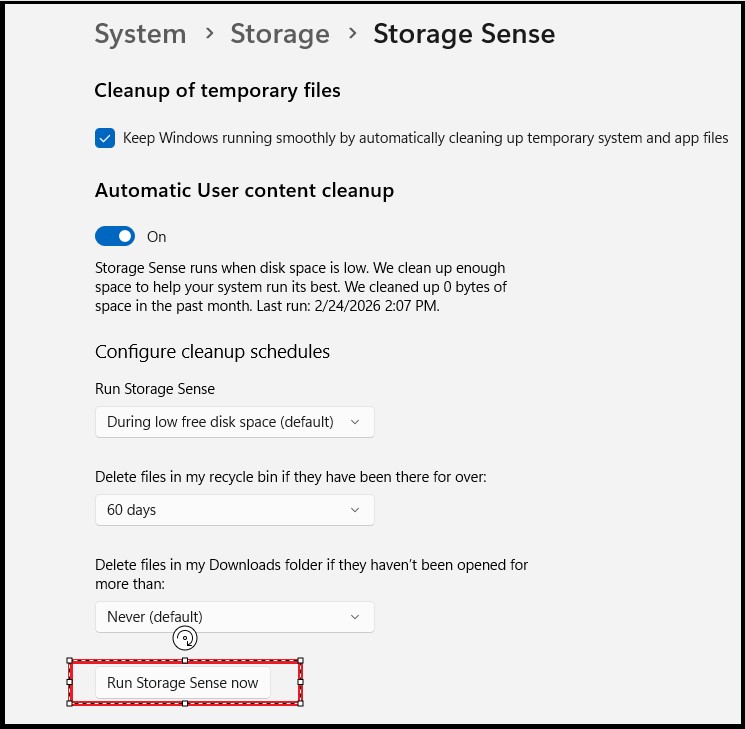
When your hard drive gets too full, Windows slows down significantly. Windows 11 has a built-in cleaning tool called Storage Sense.
Open Settings > System > Storage
Turn on Storage Sense
Click Storage Sense, then click Run Storage Sense now
Also click Cleanup recommendations and remove anything listed there
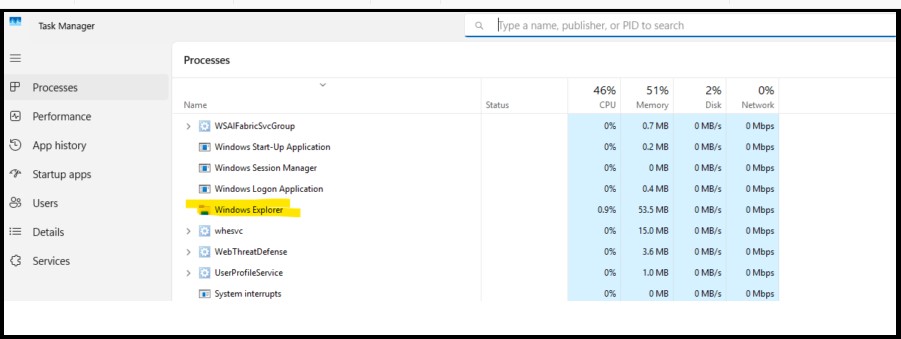
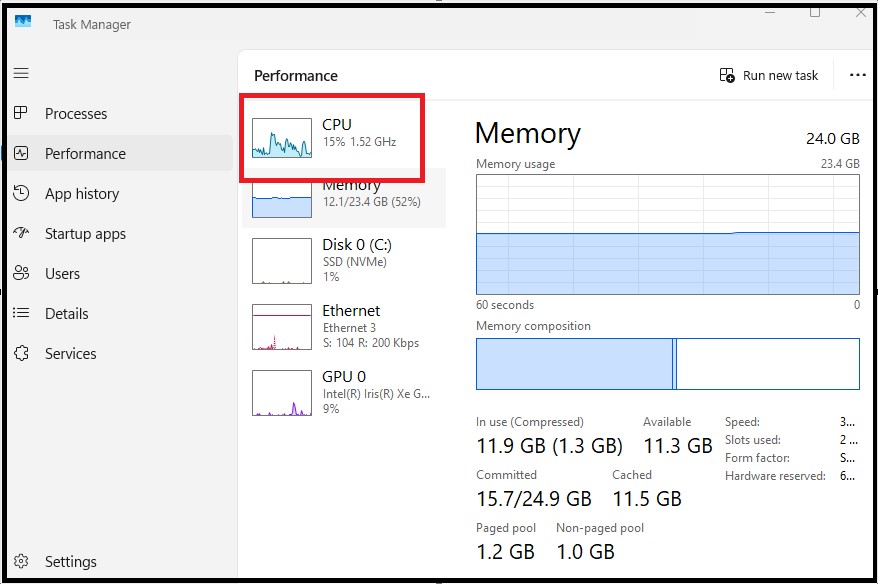
Fix: Check for Resource-Hungry Programs
Right-click the Start button and click Task Manager
Click the CPU column header to sort by CPU usage
Look for any program using more than 30-40% CPU
If you see an unknown program using lots of resources, Google its name to find out what it is
High disk usage? If your Disk column shows 100% constantly, this is a known Windows 11 issue. The fix is to open Services (search for it in Start), find SysMain, right-click it, and select Stop. Then right-click again and set Startup type to Disabled.
4. Windows Update Problems — How to Fix Them
Windows updates are important — they fix security holes and bugs. But the updates themselves can sometimes cause problems. Here is how to handle the most common Windows Update issues.
Fix: Windows Update Stuck or Not Downloading
Open Settings > Windows Update
Click Pause updates for 1 week, then click it again to Resume updates
Click Check for updates
If that does not work:
Search for Windows Update Troubleshooter in the Start menu and run it
Restart your computer and try again
Fix: Windows Update Error Codes
Error Code
What It Means
Quick Fix
0x80070057
Corrupted update file
Run Windows Update Troubleshooter
0x800705B4
Update timed out
Check your internet connection and retry
0x8024402F
Cannot reach Microsoft servers
Check firewall settings or restart router
0xC1900101
Driver conflict
Update all drivers before upgrading
0x80240034
Update database error
Restart Windows Update service
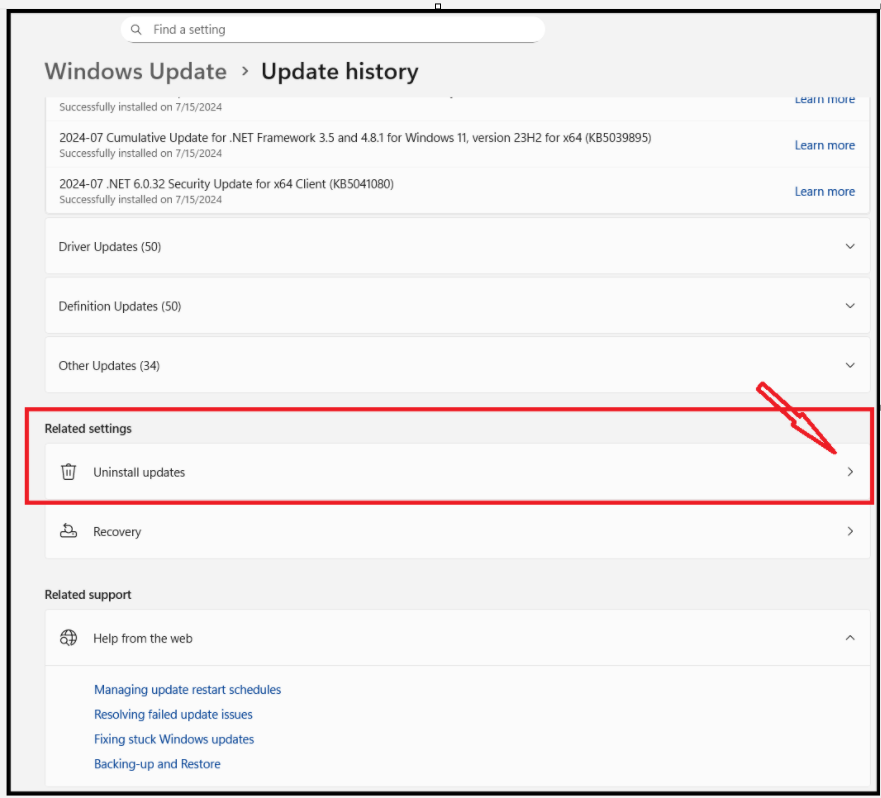
Fix: Bad Windows Update Causing Problems — How to Uninstall It
If Windows worked fine before an update and now has problems, you can remove the update:
Open Settings > Windows Update > Update history
Click Uninstall updates at the top
Find the most recent update (sorted by date), click it, then click Uninstall
Prevention: Before any major Windows update, create a System Restore point (see Section 11). This gives you a safety net to roll back to if something goes wrong.
5. USB and External Device Problems
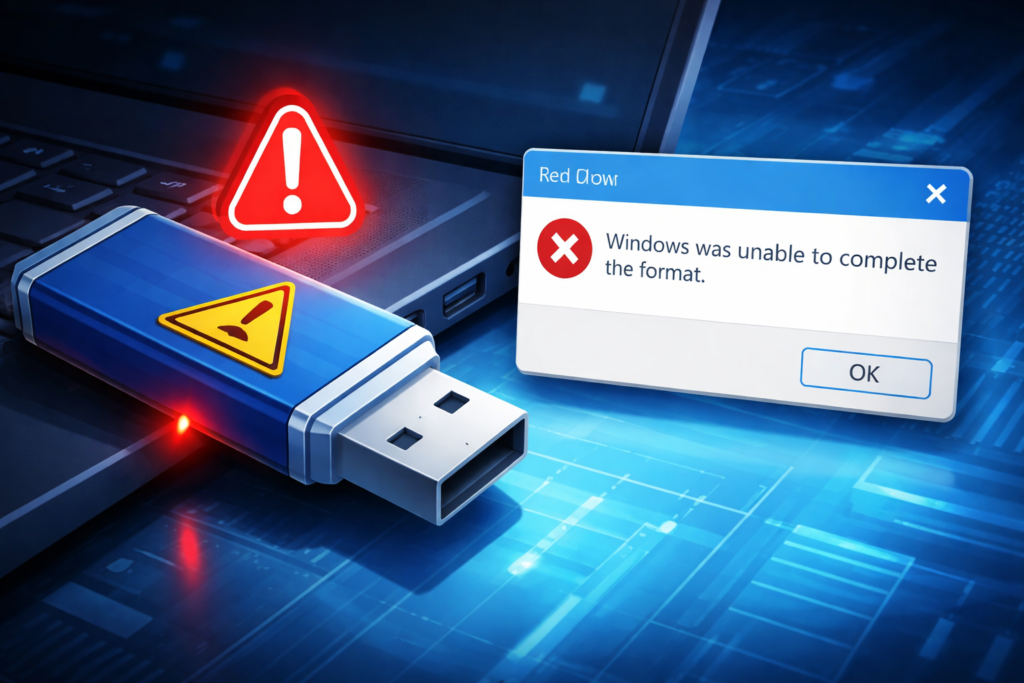
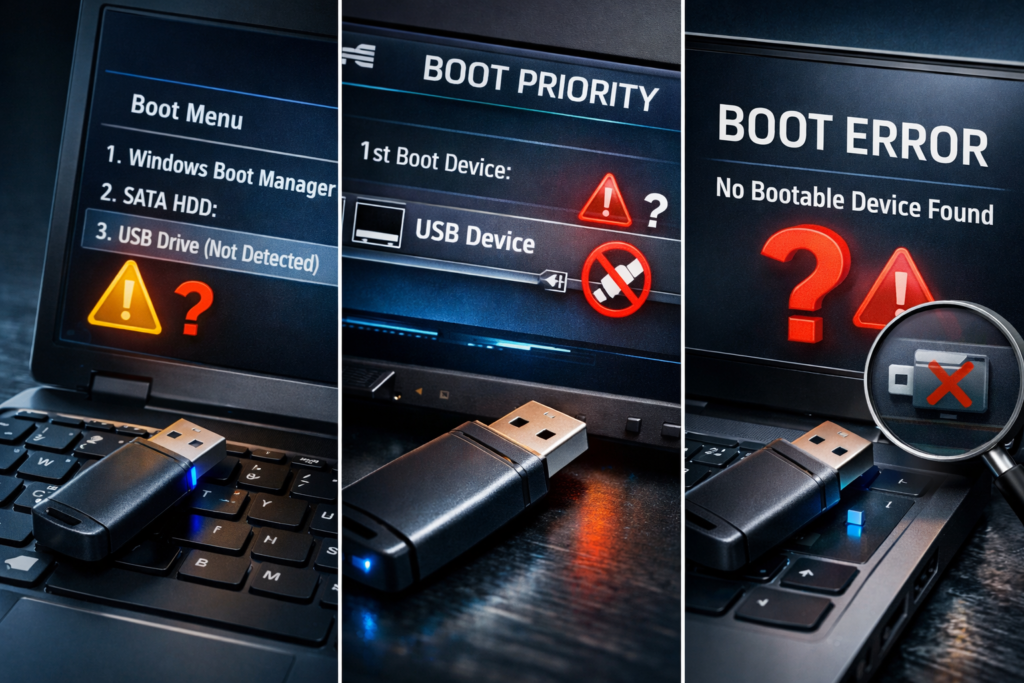
USB problems are incredibly common on Windows 11. Whether your USB drive is not showing up, won’t format, or is not being recognised as bootable — here are the fixes.
Fix: USB Drive Not Showing Up in Windows
Unplug the USB drive and plug it into a different USB port
Open Device Manager (right-click Start > Device Manager)
Look for any items with a yellow warning triangle
Right-click any affected device and choose Update driver
If the drive still does not appear:
Press Windows + R, type diskmgmt.msc, and press Enter
Look for your USB drive in the list at the bottom — it may show as Unallocated
Right-click it and choose New Simple Volume to make it accessible
No internet connection is one of the most frustrating problems — especially when other devices in your home are working fine. Here is how to diagnose and fix it quickly.
Fix: Wi-Fi Connected But No Internet
Right-click the Wi-Fi icon in the bottom right of your screen
Click Troubleshoot problems
Follow the on-screen steps
If the troubleshooter does not fix it:
Press Windows + R, type cmd, and press Ctrl + Shift + Enter to run as administrator
Type: netsh winsock reset and press Enter
Type: ipconfig /flushdns and press Enter
Restart your computer
Fix: Wi-Fi Keeps Disconnecting
Open Device Manager > Network Adapters
Right-click your Wi-Fi adapter and click Properties
Click the Power Management tab
Uncheck Allow the computer to turn off this device to save power
Click OK and restart
Fix WIFI Network Problems in PC
Still dropping? Update your Wi-Fi adapter driver. In Device Manager, right-click your Wi-Fi adapter and select Update driver > Search automatically for drivers.
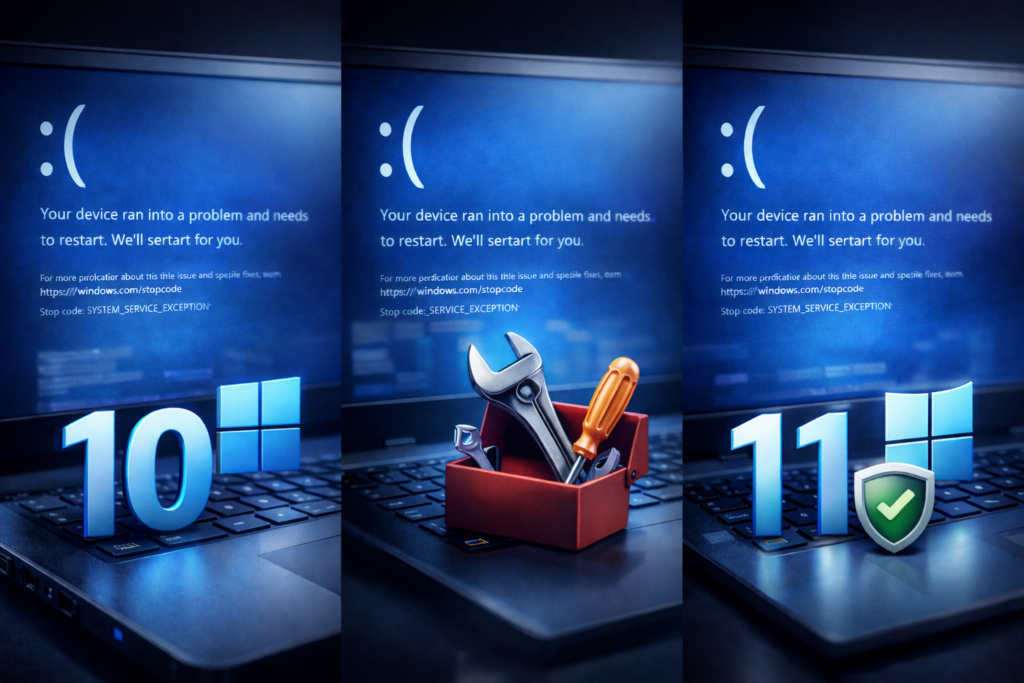
The Blue Screen of Death looks terrifying — your whole screen turns blue with a sad face and an error message. But in most cases, it is fixable. Here is what to do.
What Causes a BSOD?
Faulty or outdated drivers (the most common cause)
This is a permissions issue in Exchange/Office 365. For the complete step-by-step fix — including how to configure calendar sharing permissions correctly — see our dedicated Outlook Calendar guide on ITTechSolution.com
11. When Nothing Else Works — Your Safety Net Options
You have tried everything and the problem persists. Do not panic. Windows 11 has two powerful safety net features that can bring your computer back to life — without losing your files.
Option A: System Restore — Turn Back Time
System Restore rolls your computer’s settings back to a point when everything was working — without touching your personal files, photos, or documents.
Search for Create a restore point in the Start menu and open it
Click System Restore
Click Next and choose a restore point from when your PC was working
Click Next, then Finish, and confirm
Your computer will restart and restore — this takes 15-30 minutes
Important: System Restore does NOT delete your personal files. But it may uninstall programs that were installed after the restore point date. You can reinstall them afterwards.
Option B: Reset Windows 11 — Fresh Start, Files Kept
This reinstalls Windows 11 completely but gives you the option to keep all your personal files. Think of it as a factory reset that keeps your photos and documents.
Open Settings > System > Recovery
Click Reset this PC
Choose Keep my files — this is the important step
Choose Cloud download (recommended — gets the freshest Windows version)
Follow the on-screen steps and let it complete — takes 30-60 minutes
Success rate: A Reset with Keep my files fixes almost every software-related Windows problem. This should be your last resort — but it works extremely well.
Is it safe to fix Windows problems myself?
Yes — for the methods in this guide. Everything here uses built-in Windows tools or official Microsoft features. We never recommend downloading third-party tools, as many of these are scams or contain malware.
Will fixing Windows problems delete my files?
The fixes in this guide — including SFC scans, troubleshooters, driver updates, and even Reset (Keep my files) — do NOT delete your personal files. System Restore also keeps your files intact.
My computer is very old. Should I just buy a new one?
Not necessarily. If the hardware is working fine (no strange noises, not physically broken) but Windows is slow or behaving oddly, a Reset (Keep my files) or a clean Windows install can make an old computer feel brand new.
How do I stop Windows 11 from automatically restarting after updates?
Open Settings > Windows Update > Advanced options Turn on Notify me when a restart is required to finish updating Under Active hours, set the times when you are usually using your computer — Windows will not restart during these hours
What is the safest free antivirus for Windows 11?
Windows Defender — built into Windows 11 — is genuinely excellent and completely free. For most everyday users, you do not need any additional antivirus software. Keep Windows Defender turned on and keep Windows updated, and you are well protected.
How do I know if my computer has a virus?
Unusually slow performance with no obvious reason Pop-up ads appearing even when no browser is open Programs opening or closing by themselves Your computer’s fan running constantly at high speed Files missing or changed without you doing anything If you see these signs, run a full scan with Windows Defender: search for Windows Security in the Start menu > Virus & threat protection > Quick scan.
Final Word — You’ve Got This
There you have it — the complete Windows 11 troubleshooting guide for everyday users. Whether you are dealing with a slow computer, a failed update, a blue screen, or a printer that refuses to cooperate, every fix in this guide is safe, free, and doable.
Here is a simple rule to remember:
Diagnose first. Fix second. When all else fails — Reset with Keep my files. It almost always works.
Bookmark this page and come back whenever Windows gives you trouble. And remember — you do not need to be a tech expert to fix your own computer. You just need clear instructions. That is exactly what ITTechSolution.com is here for.