

AirPrint not working on iPhone, iPad, or Mac is one of the most common Apple printing issues. This article is part of our complete macOS, iOS and AirPrint guide, which covers setup, troubleshooting, and printer compatibility across every Apple device.
Are you struggling with AirPrint not working on your iPhone, iPad, or Mac? You’re not alone. AirPrint is a convenientApple feature that lets you print wirelessly without installing extra drivers—but when it fails, it can be frustrating.
In this guide, we’ll cover why AirPrint stops working and provide step-by-step solutions to fix it. Whether your AirPrint printer isn’t detected, showing offline, or failing after an iOS update, this article will help you get printing again.
🔍 Common Reasons Why AirPrint Isn’t Working
AirPrint problems usually come down to one of these:
- 📶 Wi-Fi issues (printer and device not on the same network)
- 🖨️ Printer compatibility (not every wireless printer supports AirPrint)
- 🔒 Firewall or router settings blocking communication
- 🔄 iOS/macOS updates causing temporary bugs
- ⚙️ Outdated printer firmware
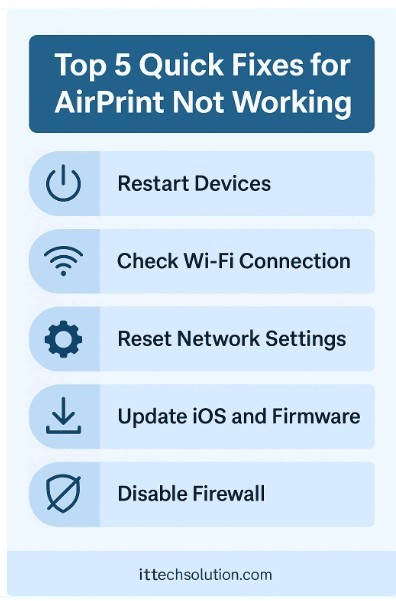
🛠️ Quick Fixes for AirPrint Not Working
1. Check Wi-Fi and Network
- Ensure your iPhone/iPad and AirPrint-enabled printer are on the same Wi-Fi network.
- Restart your Wi-Fi router.
- Avoid using guest or public Wi-Fi networks.
2. Restart Devices
- Power off your printer, wait 30 seconds, then restart.
- Restart your iPhone/iPad/Mac.
- Try reconnecting to the printer.
3. Update Printer Firmware
- Visit your printer manufacturer’s website.
- Download the latest firmware.
- Install updates to ensure compatibility with iOS/macOS.
4. Disable VPN & Firewalls
- Turn off any VPN connection.
- Check router/firewall settings that may block communication between devices.
5. Reset Printer Settings
- On the printer, go to Settings > Reset Network.
- Reconnect it to Wi-Fi.
- Try AirPrint again.
Having other Windows printing or device problems? See our complete Windows 11 problems fix guide
📱 Device-Specific Fixes
iPhone & iPad
- Make sure iOS is updated to the latest version.
- Go to Settings > Wi-Fi, ensure it’s connected to the same network as the printer.
- Try removing and reconnecting the printer.
Mac
- Go to System Settings > Printers & Scanners.
- Remove the printer and re-add it.
- Reset printing system if the issue persists.
🧑💻 Advanced Fixes
- Use the printer’s IP address instead of automatic detection.
- Check if the printer has Bonjour/mDNS enabled (required for AirPrint).
- If unsupported, consider installing third-party AirPrint alternatives like HandyPrint or Printopia.
Why is AirPrint not working on my iPhone or iPad?
AirPrint may fail if your device and printer are not on the same Wi-Fi network, if firmware is outdated, or if network firewalls block the connection.
How do I reset AirPrint on my iPhone?
Restart your iPhone, reset Wi-Fi connections, and re-add the printer under Wi-Fi settings.
My AirPrint printer is not showing up—what should I do?
Restart your router, check Bonjour is enabled on the printer, and update the printer’s firmware.
Does AirPrint work with all printers?
No, only printers that support AirPrint technology can work natively. For others, you need third-party app
🏆 Conclusion
If your AirPrint is not working, don’t panic. Most problems can be fixed with simple steps like restarting devices, updating firmware, or checking Wi-Fi settings. For persistent issues, advanced methods like Bonjour configuration or third-party AirPrint apps may help.
For more AirPrint setup, troubleshooting, and Boot Camp guides, see our full AirPrint troubleshooting guide.
→ Apply link to: full AirPrint troubleshooting guide
Post 3 — USB Stick Not Recognised as a Bootable Device
URL to edit: /usb-stick-is-not-being-recognized-as-a-bootable-device/ Pillar URL:
https://ittechsolution.com/computer-hardware-usb-peripheral-devices-guide/Sentence 1 — paste at top:
A USB stick that boots fine on one machine but is invisible to the BIOS on another is a frustrating but solvable problem. This guide is part of our complete computer hardware and USB devices guide, which covers every related USB, motherboard, and peripheral fix.
→ Apply link to: complete computer hardware and USB devices guide
Sentence 2 — paste at bottom:
For more on bootable USB creation, BIOS settings, and USB troubleshooting, see our full hardware and USB devices guide.
→ Apply link to: full hardware and USB devices guide
Post 4 — MDT Sysprep and Capture Failed
URL to edit: /mdt-sysprep-and-capture-failed/ Pillar URL:
https://ittechsolution.com/windows-troubleshooting-performance-guide/Sentence 1 — paste at top:
MDT Sysprep failures on Windows 10 build 1903 are commonly caused by BitLocker silently blocking the generalisation step. This issue is covered in our complete Windows troubleshooting and performance guide, alongside other deployment and imaging fixes.
→ Apply link to: complete Windows troubleshooting and performance guide
Sentence 2 — paste at bottom:
For more on Windows deployment, BitLocker, and performance troubleshooting, see our full Windows troubleshooting guide.
→ Apply link to: full Windows troubleshooting guide
Post 5 — Tally Server on Different VLAN
URL to edit: /tally-server-different-vlan/ Pillar URL:
https://ittechsolution.com/networking-vpn-remote-access-guide/Sentence 1 — paste at top:
Tally server connectivity across VLANs is a common networking challenge in small office environments. This article is part of our complete networking, VPN and remote access guide, which also covers WiFi, VPN setup, and remote desktop fixes.
→ Apply link to: complete networking, VPN and remote access guide
Sentence 2 — paste at bottom:
For more on VLAN configuration, VPN setup, and corporate network troubleshooting, see our full networking and VPN guide.
→ Apply link to: full networking and VPN guide
Workflow reminder for each post
- Find the post in WordPress → Edit
- Paste Sentence 1 as a new paragraph at the very top of the content
- Highlight the bold anchor text → click Link icon → paste pillar URL → Enter
- Confirm “Open in new tab” is unticked
- Scroll to the end of the post, paste Sentence 2 as a new paragraph after the conclusion
- Apply link to that anchor text the same way
- Click Update → wait for green “Post updated” notification
- Verify the post date next to the title shows today’s date — that confirms the save succeeded
Time estimate: ~5 minutes per post × 5 posts = ~25 minutes total
Once all 5 are done, share the list and I’ll verify each one. After this batch, you’ll be at 9 of 14 cluster posts complete (64% done). The remaining 5 will be a quick final session.
If you want to do these one at a time and verify each before moving on, that’s fine too — just send me one URL after you’ve updated it and I’ll check.
For more AirPrint setup, troubleshooting, and Boot Camp guides, see our full AirPrint troubleshooting guide.