
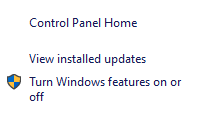
Open Start and search for Turn Windows features on or off to find the classic dialog. From there, you can enable a named Windows component or turn off one you no longer use. If you’re looking for a capability such as handwriting support, open Optional features in Settings instead.
Before changing anything, check the exact feature name in the app’s instructions. On a work or school computer, ask your IT team if the feature is missing or the controls are restricted.
Which screen should you use?
| What you want to manage | Where to look |
|---|---|
| Built-in components such as Hyper-V or Windows Sandbox on eligible PCs | The classic Windows Features dialog |
| Add-on capabilities such as handwriting resources | Optional features in Settings |
A feature’s availability depends on your Windows version, edition, hardware and device policy. If a feature appears in neither list, check its requirements before trying another installation method. Microsoft’s guide to managing Windows features.
Open Windows Features in Windows 10 or 11
- Open Start and type Turn Windows features on or off.
- Select the matching result to open Windows Features.
- If Windows asks for administrator approval, continue only if you are authorized to make changes.
You can also open Control Panel in either Windows version. In Category view, select Programs, then follow Turn Windows features on or off under Programs and Features. In icon view, open Programs and Features first and use the link in its sidebar. Microsoft’s Control Panel example.
Enable or disable a Windows component
Enable a feature
- Find the exact component you need. Expand its entry if it contains subfeatures.
- Note the original selection. Select the checkbox for the component or subfeature you intend to enable.
- Select OK and let Windows finish. Some components need additional files.
- If Windows requests a restart, save your work and restart when you can. Reopen the dialog to confirm the selection and check that the app or feature works.
Disable a feature
- Check which apps or services rely on the component. For example, review your virtual machines before disabling Hyper-V.
- Clear the checkbox for the named component and select OK. If Windows warns that other features will be affected, review the warning before continuing.
- Restart if prompted and check that the apps you use still work.
If you need to undo a change, return to the same dialog and restore the original selection. Windows may need to obtain files again when re-enabling a component. Leave unfamiliar components alone until you know what uses them. Microsoft’s feature servicing guidance.
Add or remove an optional feature in Settings
Open Settings and search for Optional features. This is the easiest route when menu locations differ.
- Windows 11: Microsoft documents System > Optional features on current builds. Some older builds place it under Apps.
- Windows 10: Microsoft documents System > Optional features on updated Windows 10 22H2 builds. Other builds may place it under Apps > Apps & features.
To add a capability, open View features or the equivalent add control, search for the name and follow the prompts to install it. Check the installed list afterward. To remove a capability, select it in the installed list and use the removal control. If you need it again, return to the add list and reinstall it from the supported source. Microsoft’s version-specific Settings instructions.
Common features and when you might need them
- Hyper-V runs virtual machines on compatible hardware and supported editions. The Hyper-V role is unavailable on Windows 10 and 11 Home. Hyper-V requirements and installation.
- Windows Sandbox gives you a disposable Windows session on eligible devices. Check edition and virtualization requirements first. Save any files you need before closing the session. Windows Sandbox installation.
- .NET Framework 3.5 may be required by a trusted older app. Follow Microsoft’s Windows 10 or Windows 11 instructions for your version. On Windows 11 25H2 and earlier, it can be installed as a Windows component. Starting with Windows 11 26H1, build 28000, Microsoft supplies it through a version-specific standalone installer. Windows 10 .NET guidance · Windows 11 .NET guidance.
Leave SMB 1.0/CIFS disabled for ordinary use. If an old device requires it, look for a firmware update, a supported SMB version or a replacement. Enable Internet Information Services (IIS) only for a specific web-server need and review its network exposure before using it. Microsoft’s SMBv1 guidance.
Troubleshoot a missing feature or a failed installation
- Check your Windows edition, version and build under Settings > System > About. Confirm the feature supports that combination.
- Check both feature interfaces and the feature’s official documentation. If a managed device blocks the change, contact IT.
- Check for a pending restart and whether the device can reach its approved update source. Some features need Windows Update or matching component files.
- Record the exact error code. For example, during .NET Framework 3.5 component installation, 0x800F081F can indicate missing source files and 0x800F0906 can indicate a download failure. Use Microsoft’s guidance for that component or ask IT to check the approved source. Microsoft’s .NET deployment errors.
Windows 10 standard support ended October 14, 2025. Eligible devices enrolled in an applicable Extended Security Updates program can receive covered security updates. Check your device’s arrangements separately from feature availability. Microsoft’s Windows 10 support guidance.
Frequently asked questions
Do I always need to restart? Follow the completion prompt for the specific change. Save your work before restarting and verify the feature afterward.
Why is a checkbox missing? Check the feature’s supported Windows build, edition and hardware. On managed devices, policy may also affect availability. Some items belong in Settings or have a separate installer.
Can I undo a change? Restore the original checkbox in Windows Features, or add or remove the same capability in Settings. Check dependent apps and follow any restart prompt.
For everyday preferences, see our Windows 10 settings guide. For other symptoms, start with the Windows troubleshooting and performance guide.

