

In this guide, you will learn how to create a VPN profile and connect to a VPN using the built-in Windows 10 VPN client. This method is useful if you prefer not to install third-party VPN software or if you are using a free VPN service.
✅ Step-by-Step: Create a VPN Profile in Windows 10
Follow the steps below to set up a VPN connection on your Windows 10 computer:
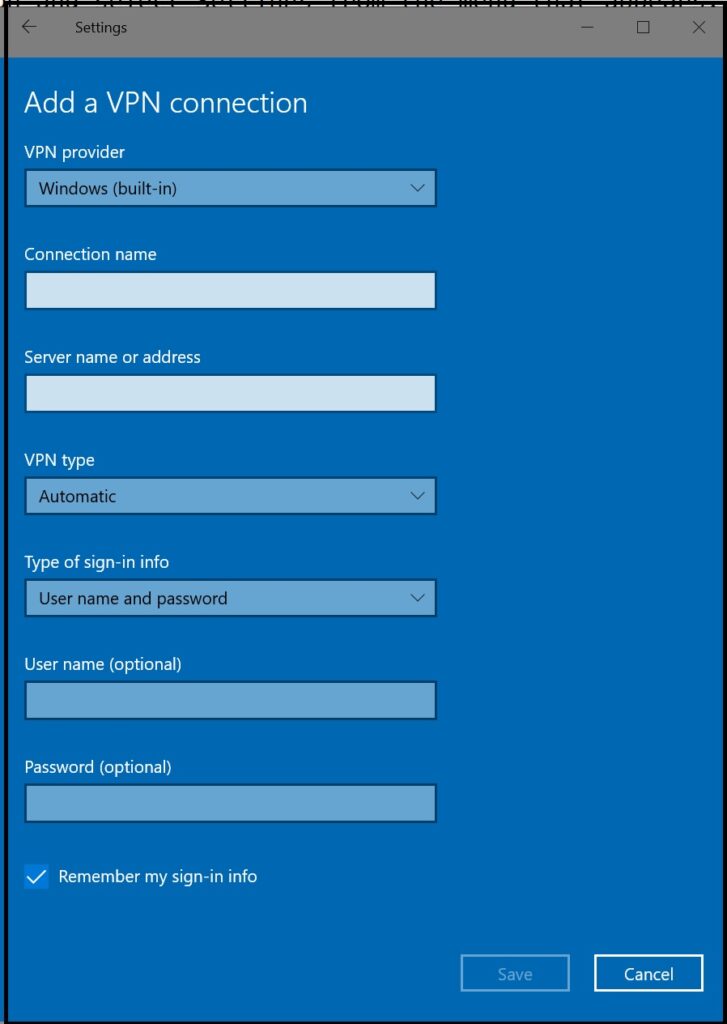
Click Add a VPN connection.
On your Windows 10 PC, right-click the Start button and select Settings
(or type Settings in the search bar and open it).
In the Settings window, click Network & Internet, then select VPN from the left panel.

🛠️ Configure VPN Settings in Windows 10
A new VPN configuration window will appear. Fill in the details as follows:
- VPN provider
Select Windows (built-in) from the dropdown menu. - Connection name
Enter a name that helps you easily identify the VPN connection. - Server name or address
Enter the VPN server IP address or URL provided by your VPN service provider. - VPN type
Choose the VPN protocol recommended by your service provider.
(Windows offers multiple options such as PPTP, L2TP/IPSec, SSTP, IKEv2, etc.) - Type of sign-in info
Select Username and password (or another method specified by your provider). - Click Save to create the VPN profile.
Once saved, you will see the newly created VPN profile listed on the right side of the VPN settings page.
🔌 How to Connect to the VPN
- Go to Settings → Network & Internet → VPN
- Select the VPN profile you created
- Click Connect
- Enter your username and password if prompted
Your Windows 10 system will now connect to the VPN server.
ℹ️ Why Use the Windows 10 Built-In VPN Client?
Most VPN service providers recommend using their own client software, such as Cisco AnyConnect, ExpressVPN, ProtonVPN, and others. While these applications provide advanced features, they can sometimes be complex to use and may cause connectivity issues.
If you are using a free VPN service or want a simple and lightweight solution, the Windows built-in VPN client is often easier to configure and use.
If you face other VPN-related issues, feel free to explore our blog, where we have covered many VPN troubleshooting topics in detail.
If you experience VPN connection problems in Windows 10 while using third-party VPN software, you can refer to our troubleshooting guide on Cisco AnyConnect VPN not working in Windows 10.
In some cases, users may see an unable to establish VPN connection error, which requires additional troubleshooting steps.