
Introduction
Windows Update is essential for keeping your PC secure, stable, and compatible with the latest hardware. Microsoft regularly releases patches every quarter to address vulnerabilities, security issues, and driver updates. However, the update process does not always go smoothly — it can take hours to complete and frequently runs into errors that leave users frustrated.
This guide covers the most common Windows Update errors in Windows, along with proven, step-by-step solutions to fix them.
Microsoft is been releasing new patches every quarter to fix vulnerability, security updates and hardware drivers. Windows patches are so long it takes hours to update based on the version of Windows. Some common issues of Windows update in Windows 10 and Windows server are
Common Windows Update Error Codes
If your Windows Update has failed, you may have encountered one of the following error codes:
- 0x80240034
- 0x8007000E
- 0x80242006
- 0x80244018
- 0x80D02002
- 0x80246017
- 0x80240438
- 0x80070070
- 0x8007000D
- 0x80246008
- 0x80096004
- 0x80070020
You may also experience issues such as:
- Windows Update getting stuck or spinning indefinitely
- Windows Update error 80072efe
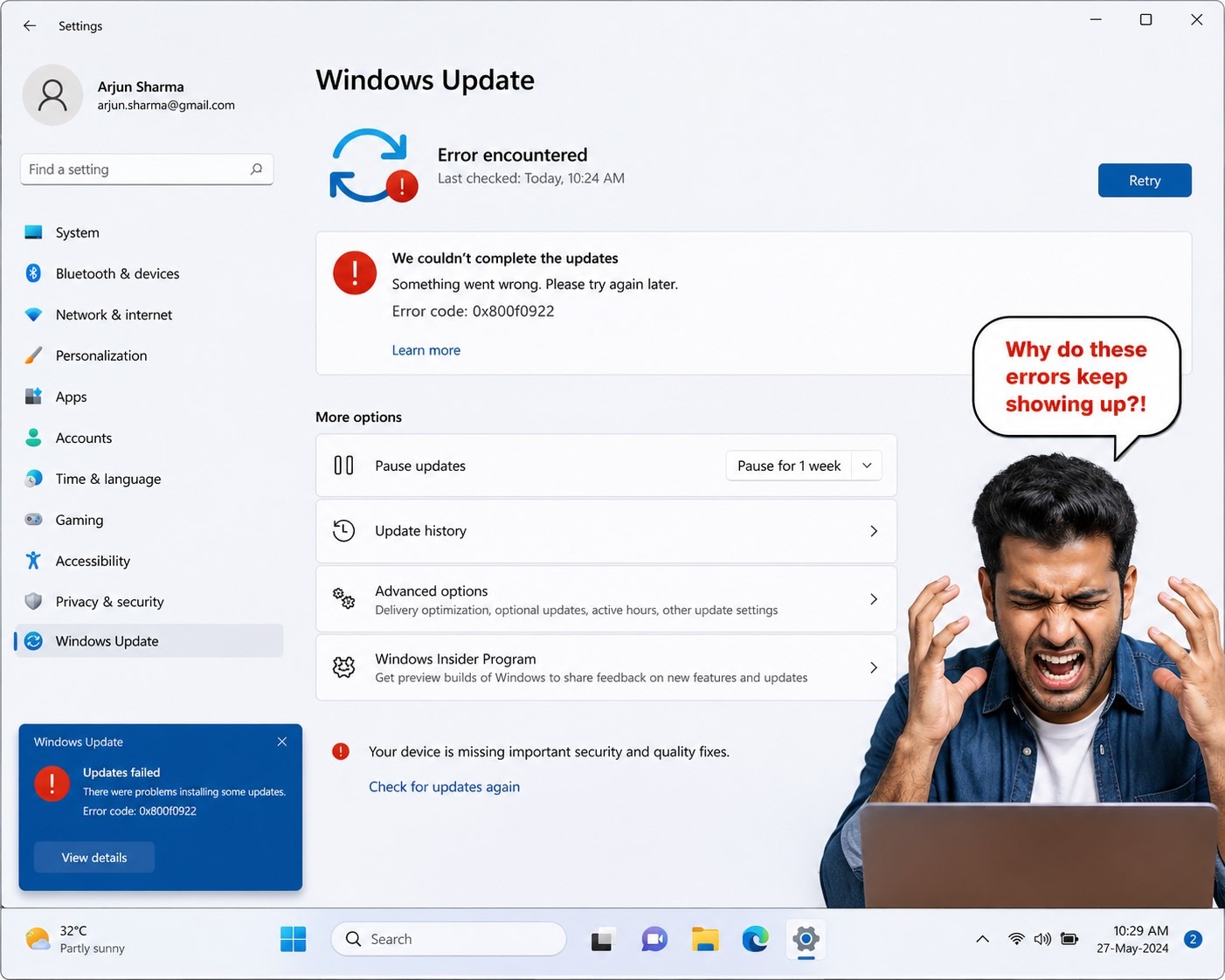
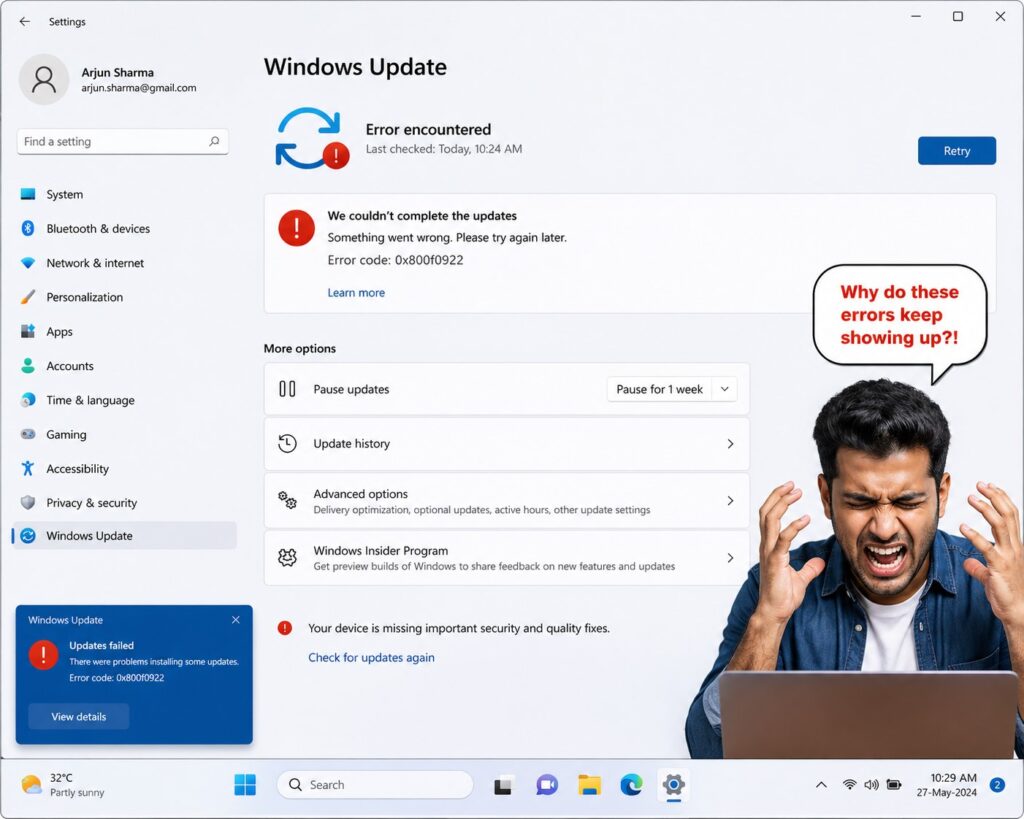
- Windows Update error 0x800f0922
- Windows Update error 0x8000ffff
- Windows Update error 80072ee2
- Windows Update error 0x800f0831
- Windows Update installation freezing mid-way
No matter which error you are seeing, the steps below are designed to resolve all of the common issues listed above.
- The Steps shown here should help to fix any errors that come up during the Windows patch Update.
Preliminary checks to Fix Common Windows Update Errors in Windows
- Check C drive has 16 GB of free space to upgrade a 32-bit OS and 20 GB for a 64-bit OS.
- If you manage to free up disk space check for updates, select Start > Settings > Update & Security > Windows Update > Check for updates.
- Remove any external storage device attached, USB device and check for updates.
- Check Device manager shows drivers errors, if any errors found, uninstall drivers and update drivers
- Open elevated command prompt DISM.exe /Online /Cleanup-image /Restorehealth
- Open elevated command prompt enter sfc /scannow
- Rename the Software Distribution folder
open powershell and then enter the below commands
net stop bits
net stop wuauserv
ren %systemroot%\softwaredistribution softwaredistribution.bak
ren %systemroot%\system32\catroot2 catroot2.bak
net start bits
net start wuauserv
If you still has issues with updating windows updates, then move forward for the next level.
Fix Windows update errors by resetting Windows update agent.
Type in search bar “cmd” Run as administrator
net stop wuauserv
rd /s /q %systemroot%\SoftwareDistribution
net start wuauserv
Reset Windows update Components
net stop bits
net stop wuauserv
net stop cryptsvc
Delete qmgr*.dat file
Del "%ALLUSERSPROFILE%\Application Data\Microsoft\Network\Downloader\qmgr*.dat"Rename datastore, Download and catroot2 folders
Ren %Systemroot%\SoftwareDistribution\DataStore DataStore.bak
Ren %Systemroot%\SoftwareDistribution\Download Download.bak
Ren %Systemroot%\System32\catroot2 catroot2.bak
Reset BITS Service and Windows update service
sc.exe sdset bits D:(A;;CCLCSWRPWPDTLOCRRC;;;SY)(A;;CCDCLCSWRPWPDTLOCRSDRCWDWO;;;BA)(A;;CCLCSWLOCRRC;;;AU)(A;;CCLCSWRPWPDTLOCRRC;;;PU)
sc.exe sdset wuauserv D:(A;;CCLCSWRPWPDTLOCRRC;;;SY)(A;;CCDCLCSWRPWPDTLOCRSDRCWDWO;;;BA)(A;;CCLCSWLOCRRC;;;AU)(A;;CCLCSWRPWPDTLOCRRC;;;PU)
In command prompt go system32 folder
cd /d %windir%\system32Now Register BITS and Windows update files.
regsvr32.exe atl.dll
regsvr32.exe urlmon.dll
regsvr32.exe mshtml.dll
regsvr32.exe shdocvw.dll
regsvr32.exe browseui.dll
regsvr32.exe jscript.dll
regsvr32.exe vbscript.dll
regsvr32.exe scrrun.dll
regsvr32.exe msxml.dll
regsvr32.exe msxml3.dll
regsvr32.exe msxml6.dll
regsvr32.exe actxprxy.dll
regsvr32.exe softpub.dll
regsvr32.exe wintrust.dll
regsvr32.exe dssenh.dll
regsvr32.exe rsaenh.dll
regsvr32.exe gpkcsp.dll
regsvr32.exe sccbase.dll
regsvr32.exe slbcsp.dll
regsvr32.exe cryptdlg.dll
regsvr32.exe oleaut32.dll
regsvr32.exe ole32.dll
regsvr32.exe shell32.dll
regsvr32.exe initpki.dll
regsvr32.exe wuapi.dll
regsvr32.exe wuaueng.dll
regsvr32.exe wuaueng1.dll
regsvr32.exe wucltui.dll
regsvr32.exe wups.dll
regsvr32.exe wups2.dll
regsvr32.exe wuweb.dll
regsvr32.exe qmgr.dll
regsvr32.exe qmgrprxy.dll
regsvr32.exe wucltux.dll
regsvr32.exe muweb.dll
regsvr32.exe wuwebv.dll
Reset Winsock
netsh winsock resetRestart BITS, Windows update service and Cryptographic service
net start bits net start wuauserv net start cryptsvc
Restart Your Computer and Check for Updates
After completing all the steps above, restart your computer. Once it has restarted, go to:
Start > Settings > Update & Security > Windows Update > Check for updates
This full reset procedure resolves the vast majority of Windows Update errors, including all error codes listed at the top of this guide.
Frequently Asked Questions
Why does Windows Update take so long?
Windows patches can be very large, especially if your system has not been updated in a while. Update duration depends on your Windows version, the number of pending updates, your internet speed, and your hardware performance.
Is it safe to rename the Software Distribution folder?
Yes. Renaming the folder (rather than deleting it) is a safe, reversible action. Windows will automatically recreate the folder and download fresh update data the next time it checks for updates.
What should I do if none of these steps work?
If your Windows Update still fails after following all the steps in this guide, consider running the built-in Windows Update Troubleshooter (Settings > Update & Security > Troubleshoot) or performing a Windows repair installation using the Windows installation media.
Conclusion
Windows Update errors are common but almost always fixable. By working through the steps in this guide — from basic disk space checks to a full component reset — you can resolve errors like 0x80240034, 0x8007000E, stuck installations, and spinning update screens. Always restart your computer after applying fixes, and keep your system updated regularly to avoid future issues.
🔗 More topic clusters on this site
Windows OS Troubleshooting & Performance | Data Recovery & Storage Management | Networking, VPN & Remote Access | Security & Password Management | Microsoft Office & Productivity Apps